List view
New Releases
New Releases
Getting Started
Getting Started


Order Management
Order Management


Inspection Management
Inspection Management
Templates
Templates
Navigate in Time & Action
Collaboration
Collaboration is where you can assign your team or your partners to be in any role for your order.
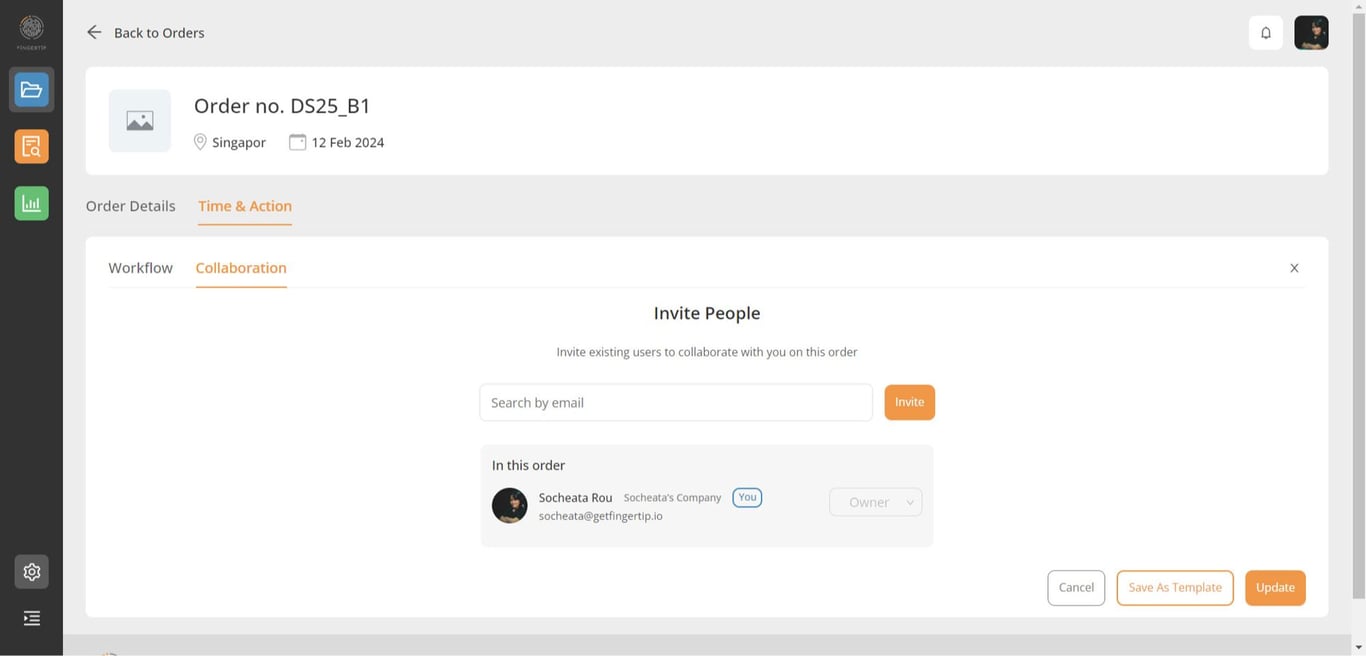
Search your team email here
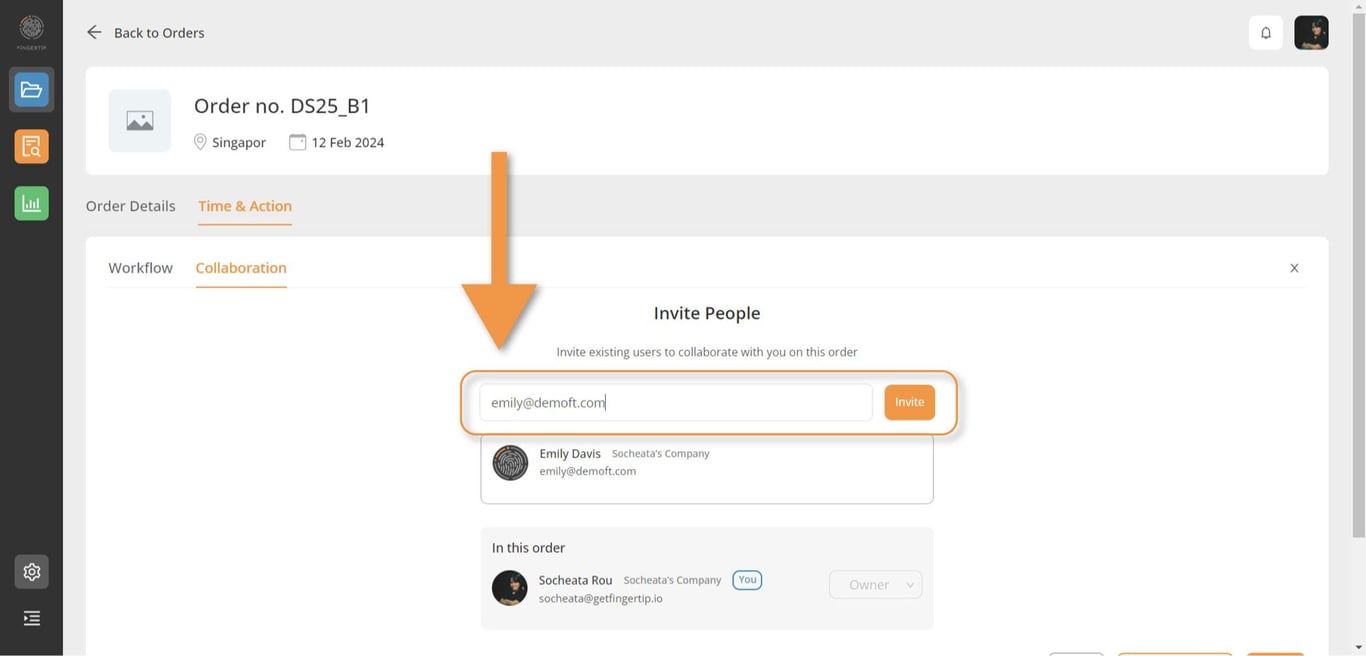
When you type your team email, there will be a message to tell some information with that email. To make sure that you invite the right person.
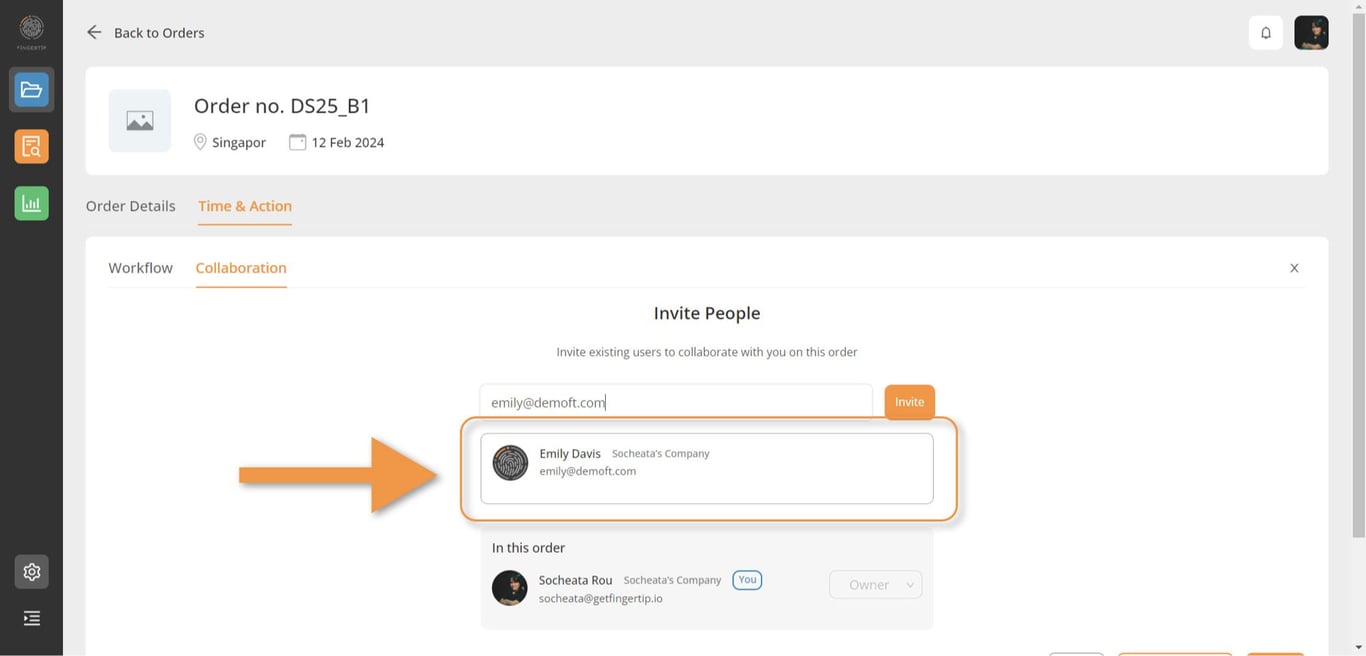
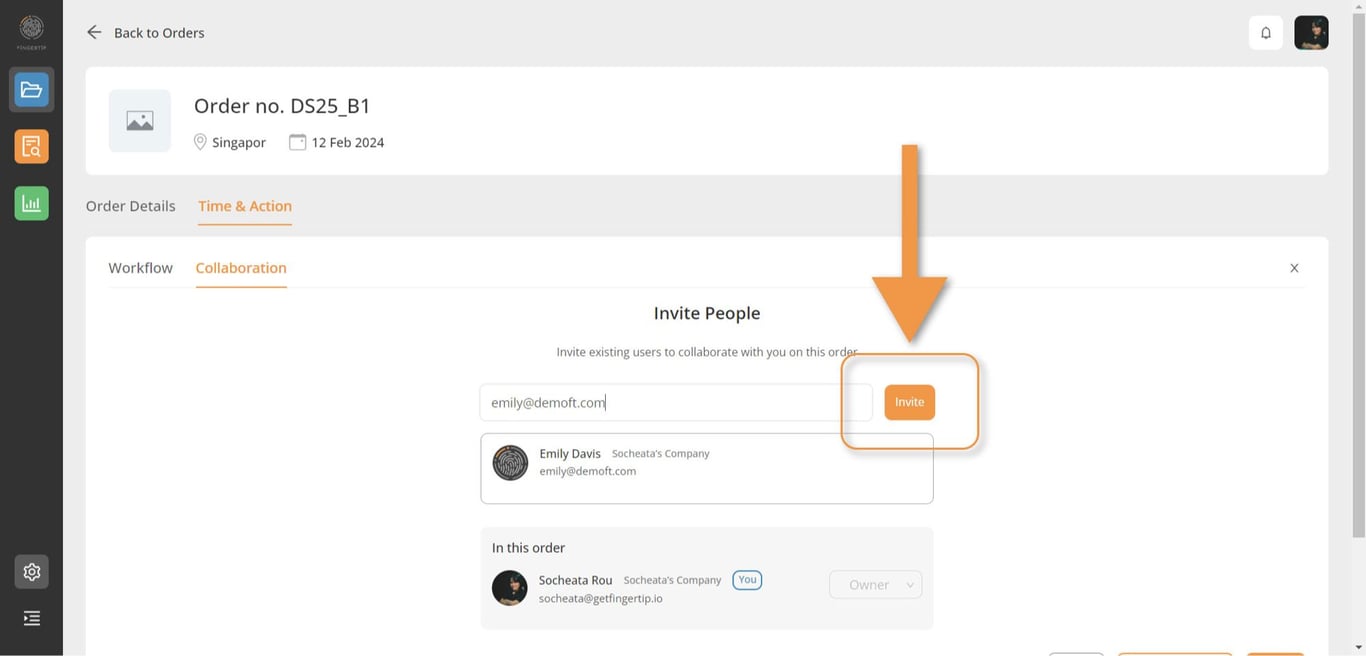
If everything is correct, you need to click Invite.
After that, your team will appear as below
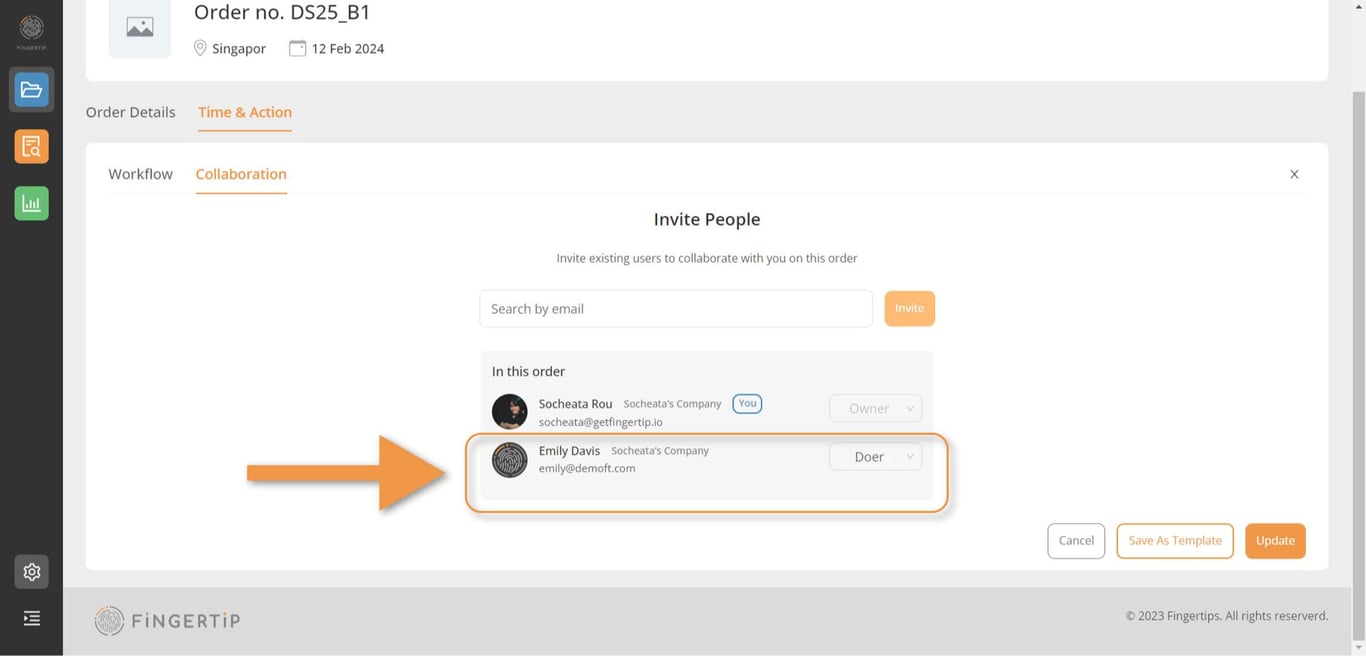
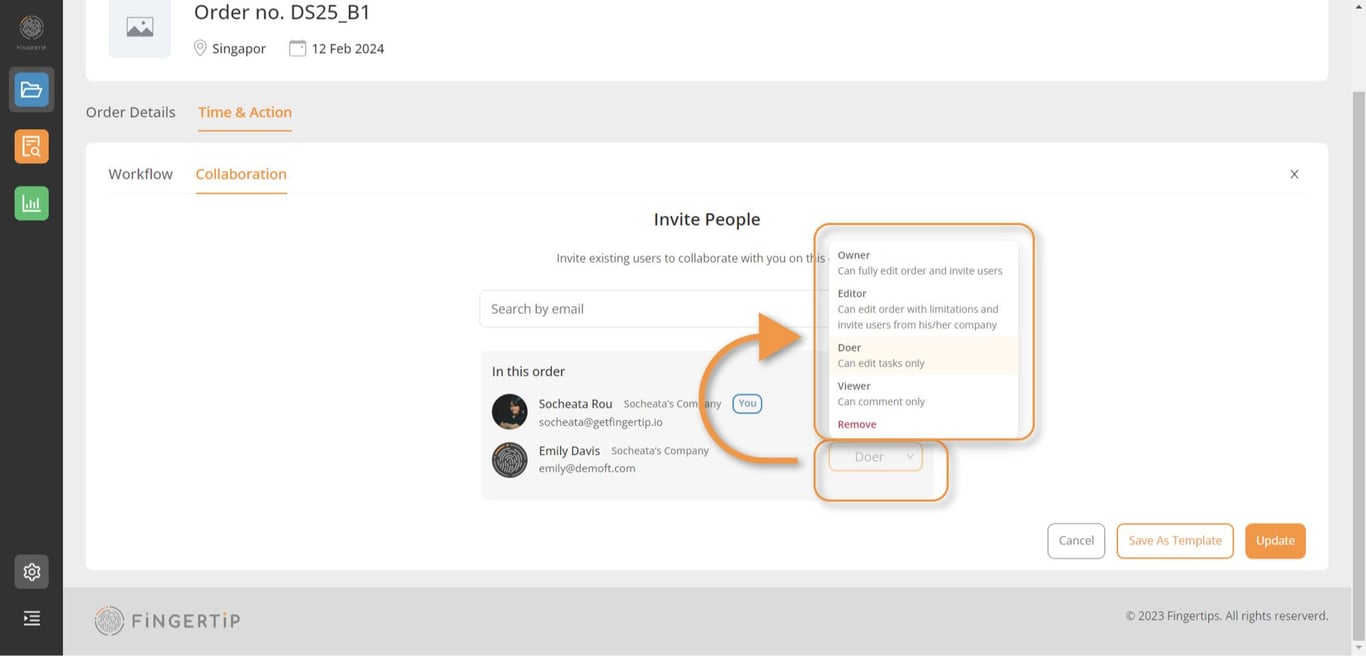
When you added your team, their first role will start with Doer. You can edit or remove your team here.
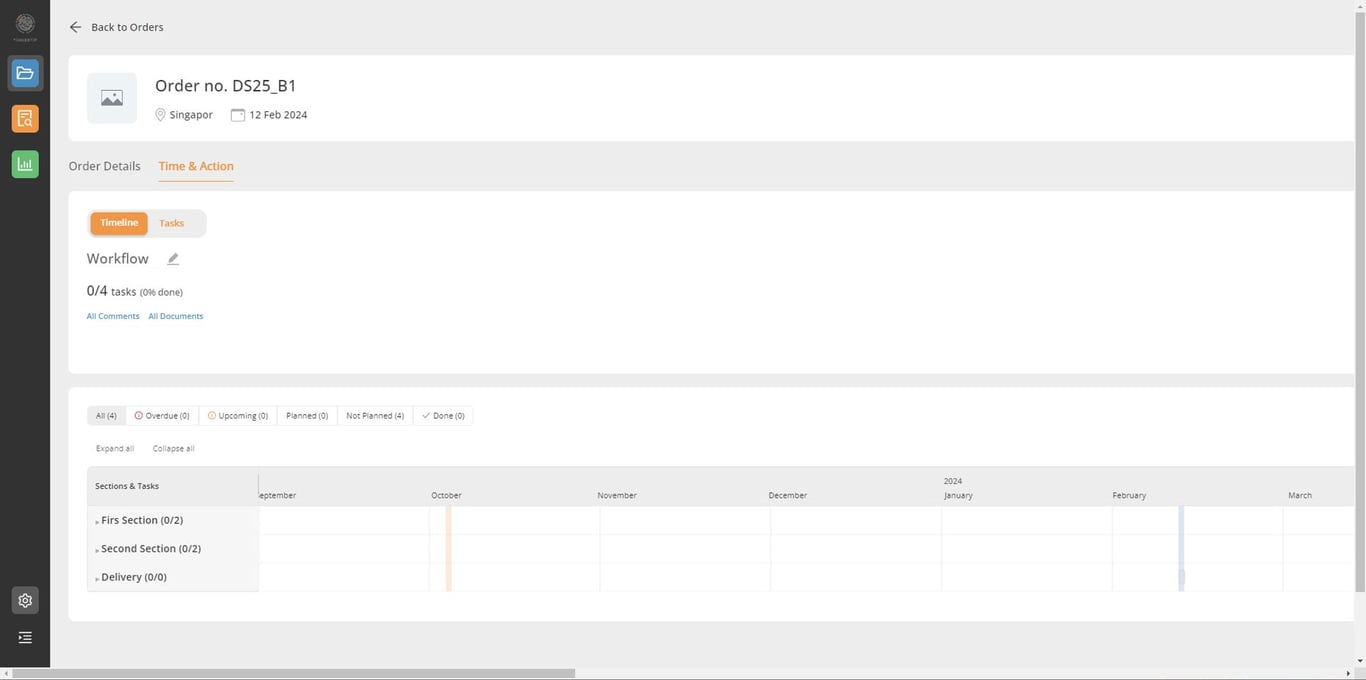
Timeline
You can check you order timeline on what need to be done and when. There’s a lot of detail timeline for all your sections and subsections.
You can here to view timeline for your sub section
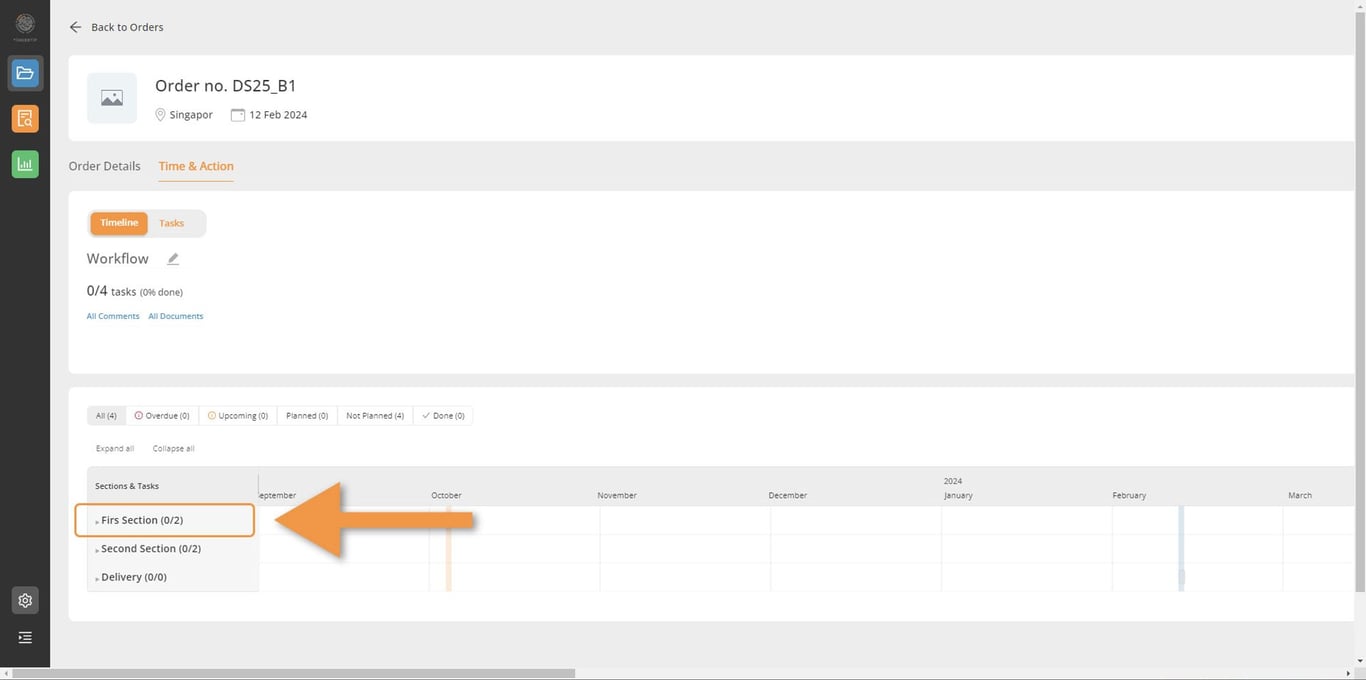
All the section and subsection will appear here. Because in the workflow we put only two Sections and each section have two sub section for example, So it show only for those.
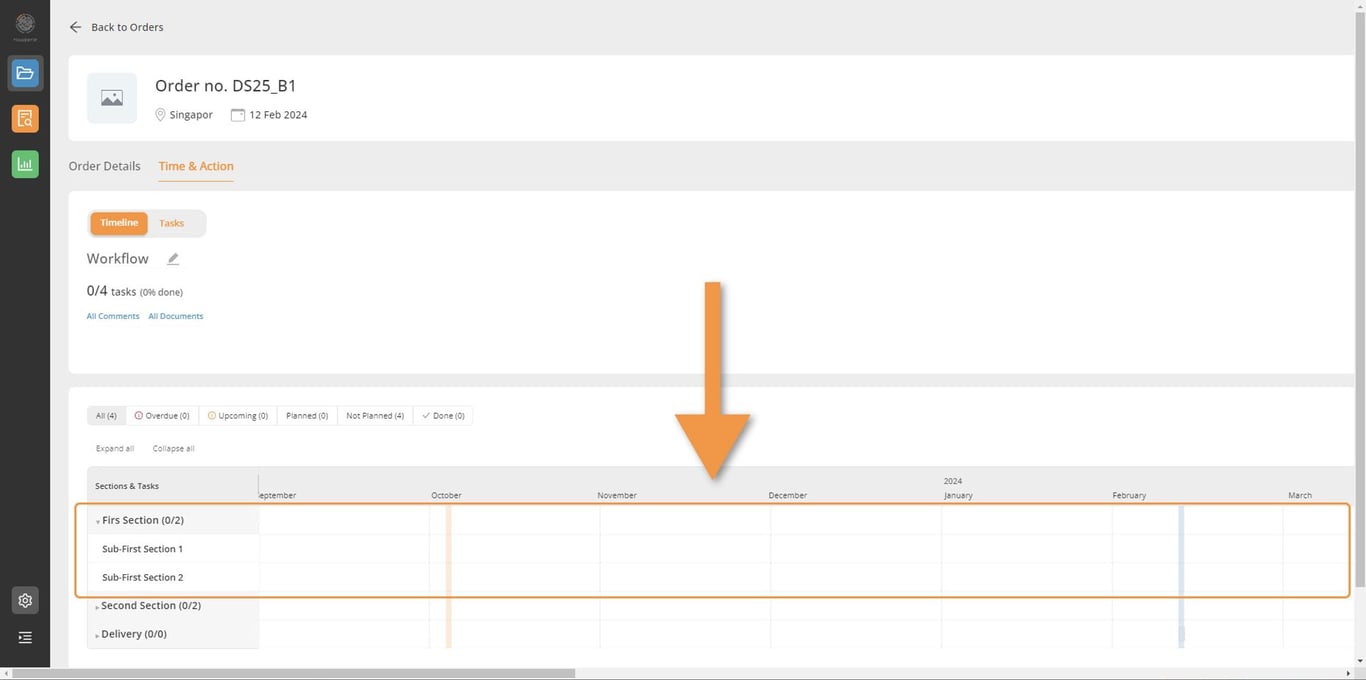
as you can the above sample that there is no any timeline appear yet. Because you are not yet assign any plan date yet.
So the next step is to assign the plan date in Task.
Tasks
Task is where you use to assign and set your plan for the your Section and Sub Section.
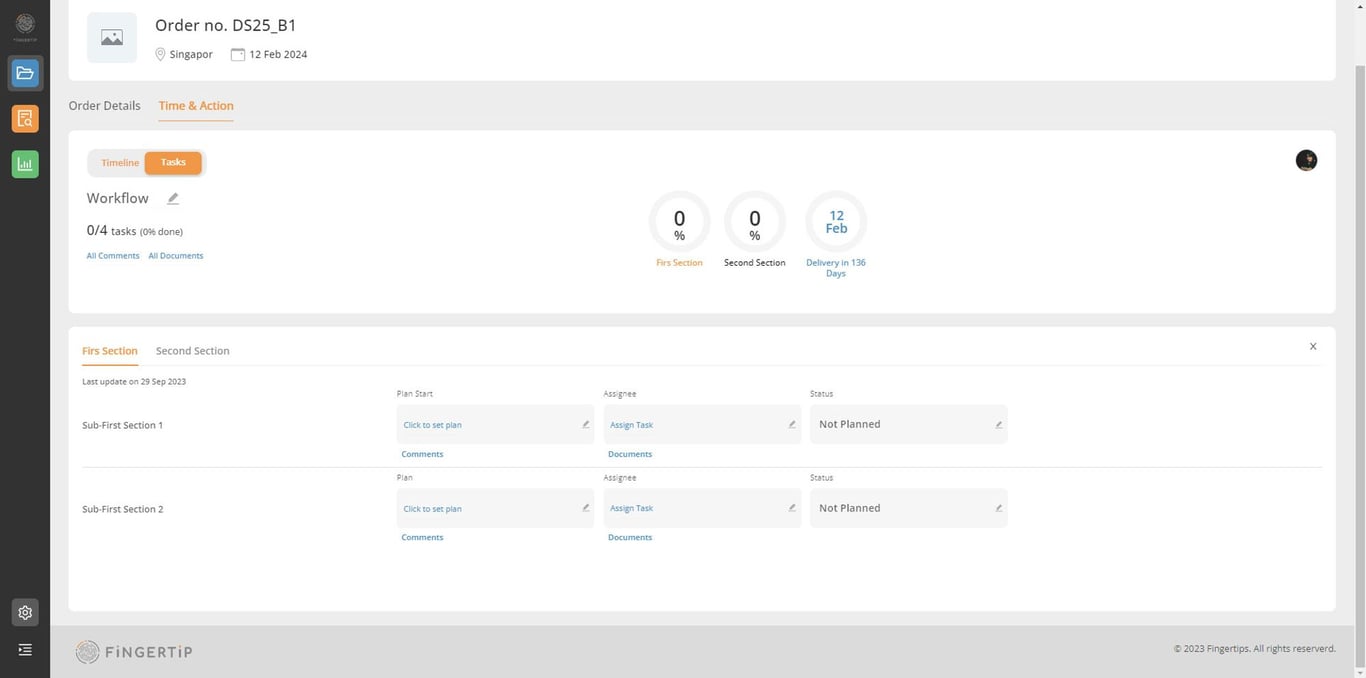
There are things you need to assign for each sub Section in Task such as:
Plan start
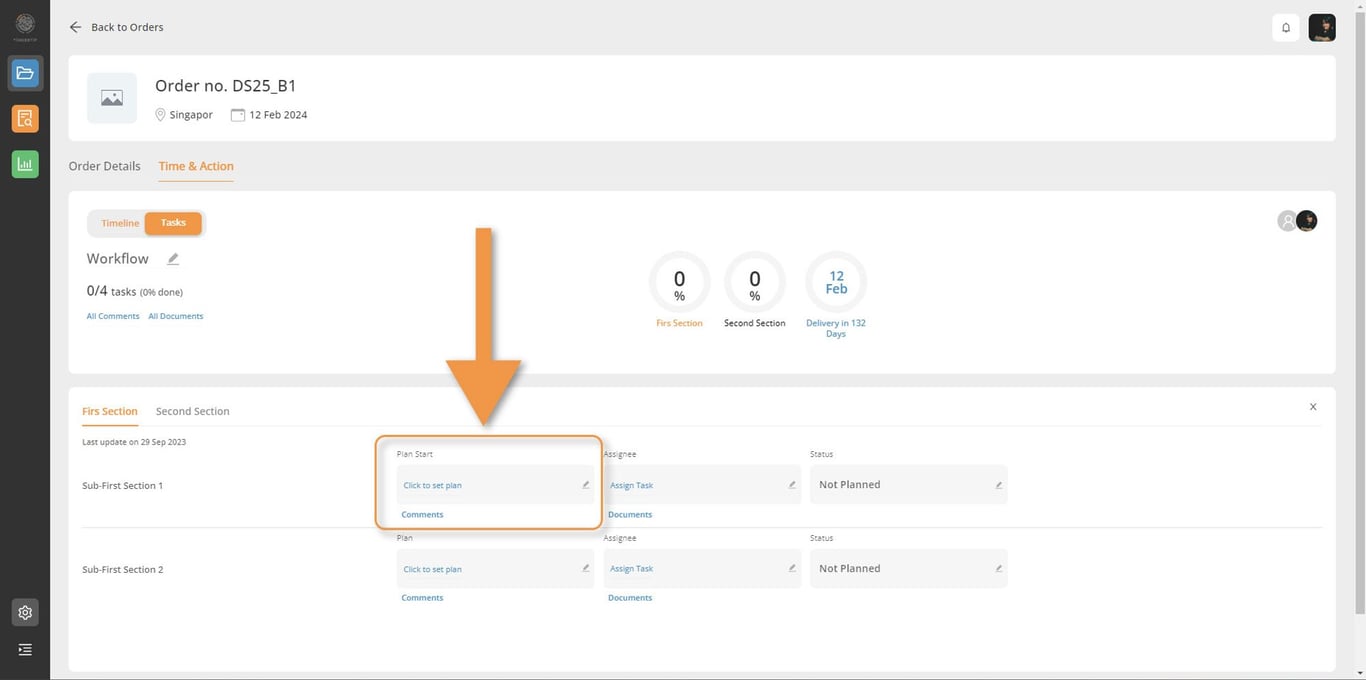
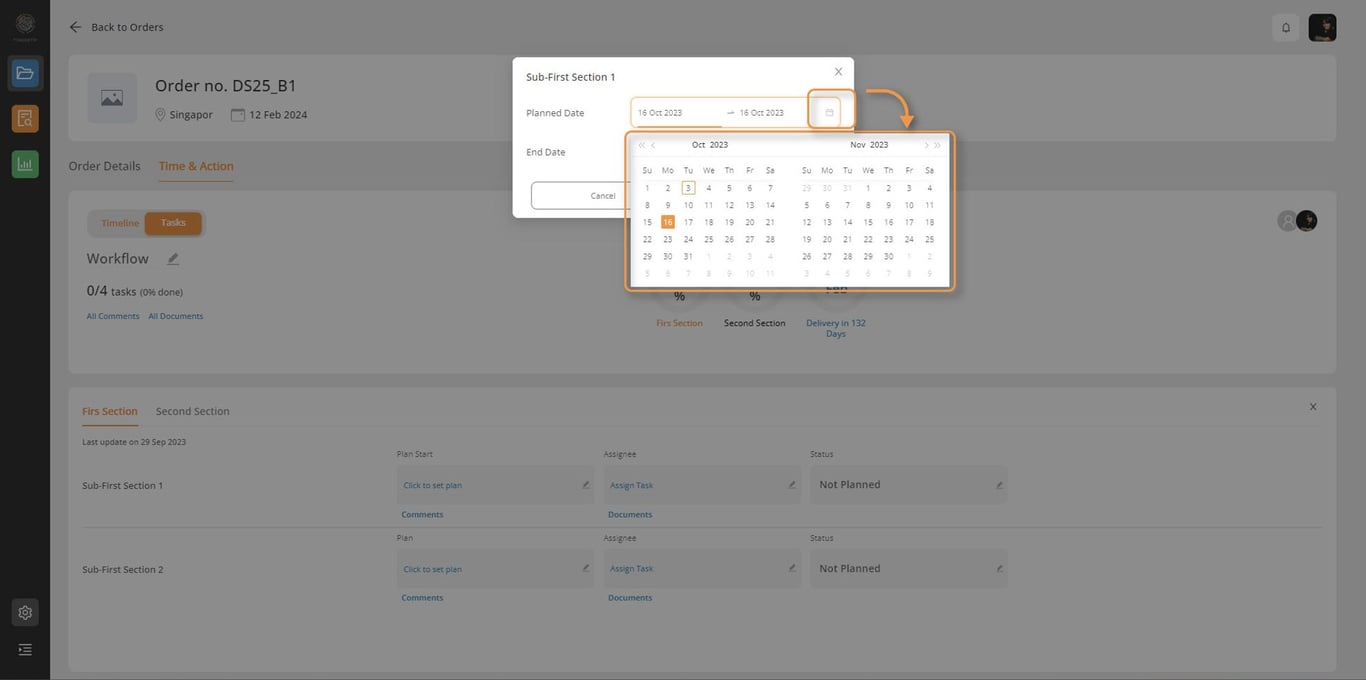
You can add plan start and end here.
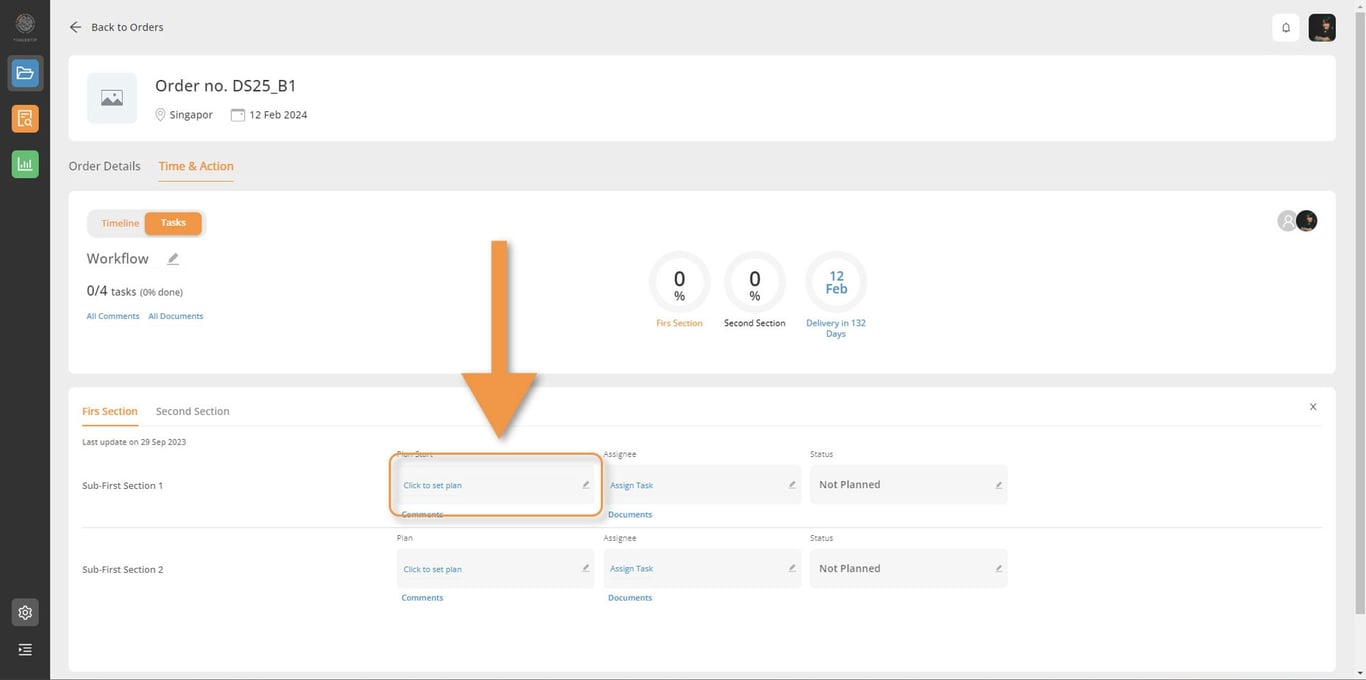
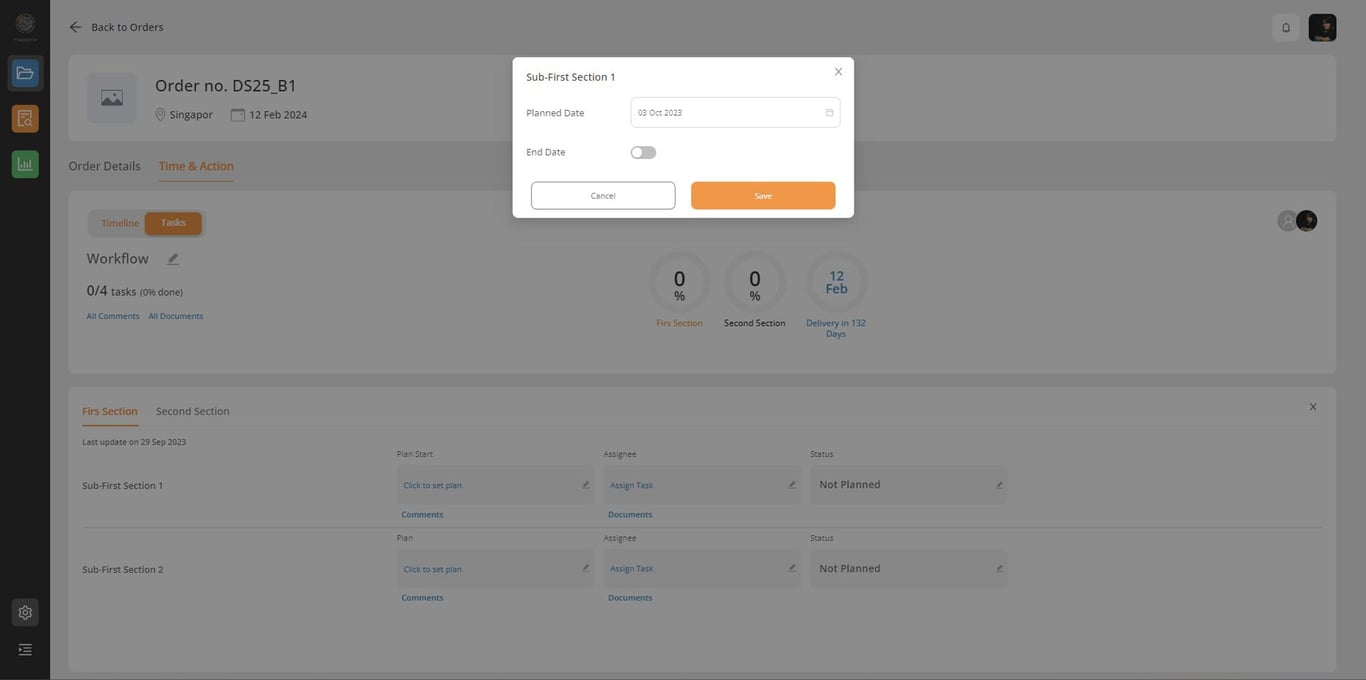
If you only want to set start date without end date, you only need to click on Planned Date and chose the date.
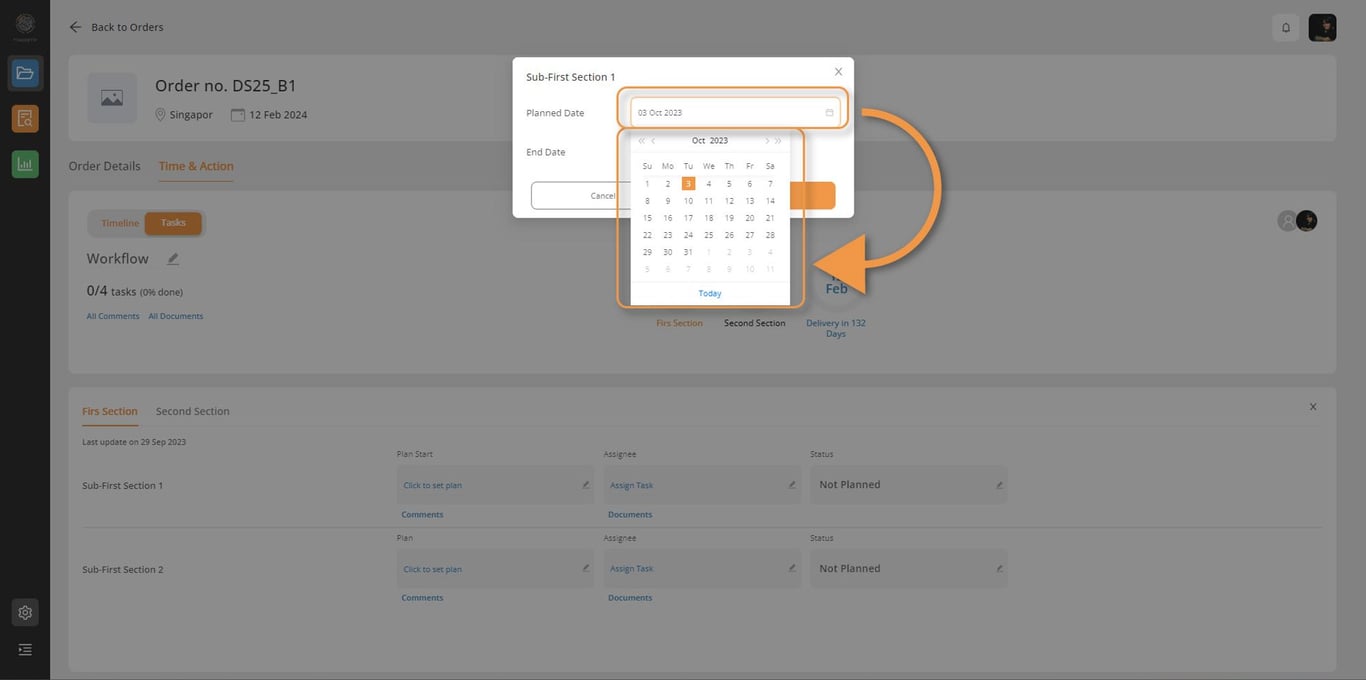
Click on this one arrow to move to one more month forward.
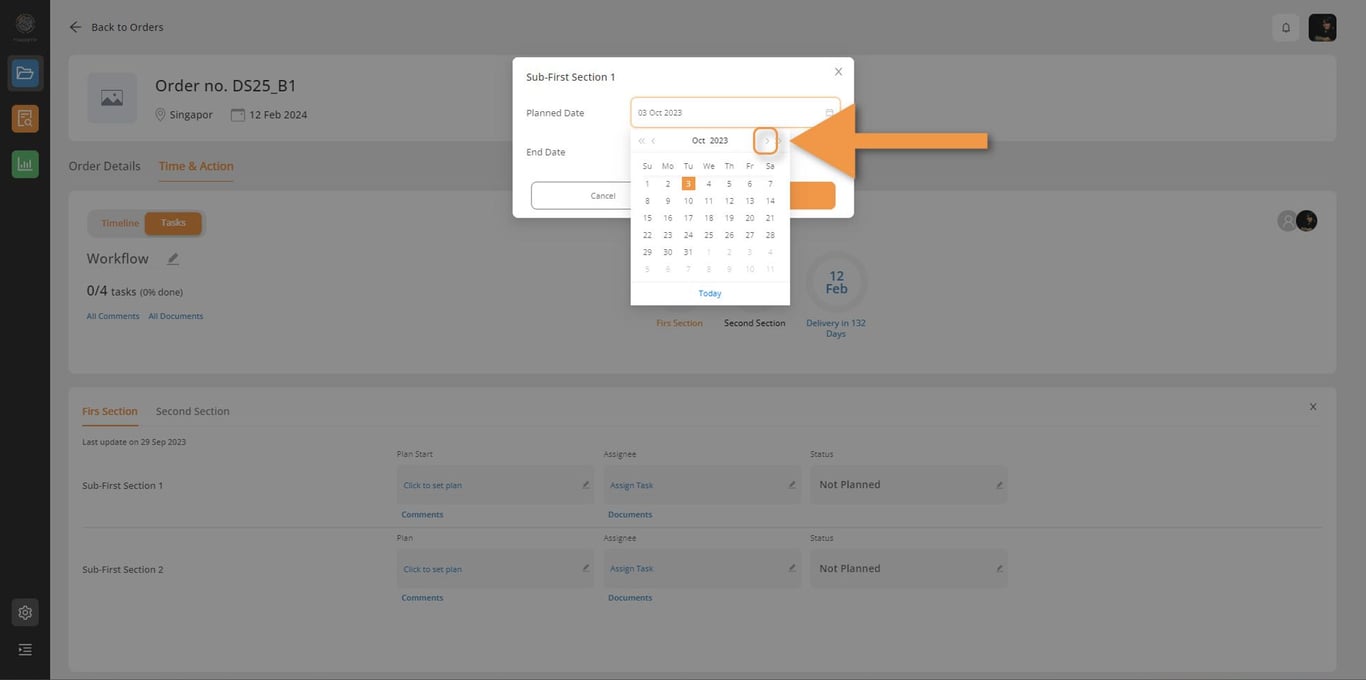
Click on this one arrow to move to one more month backward.
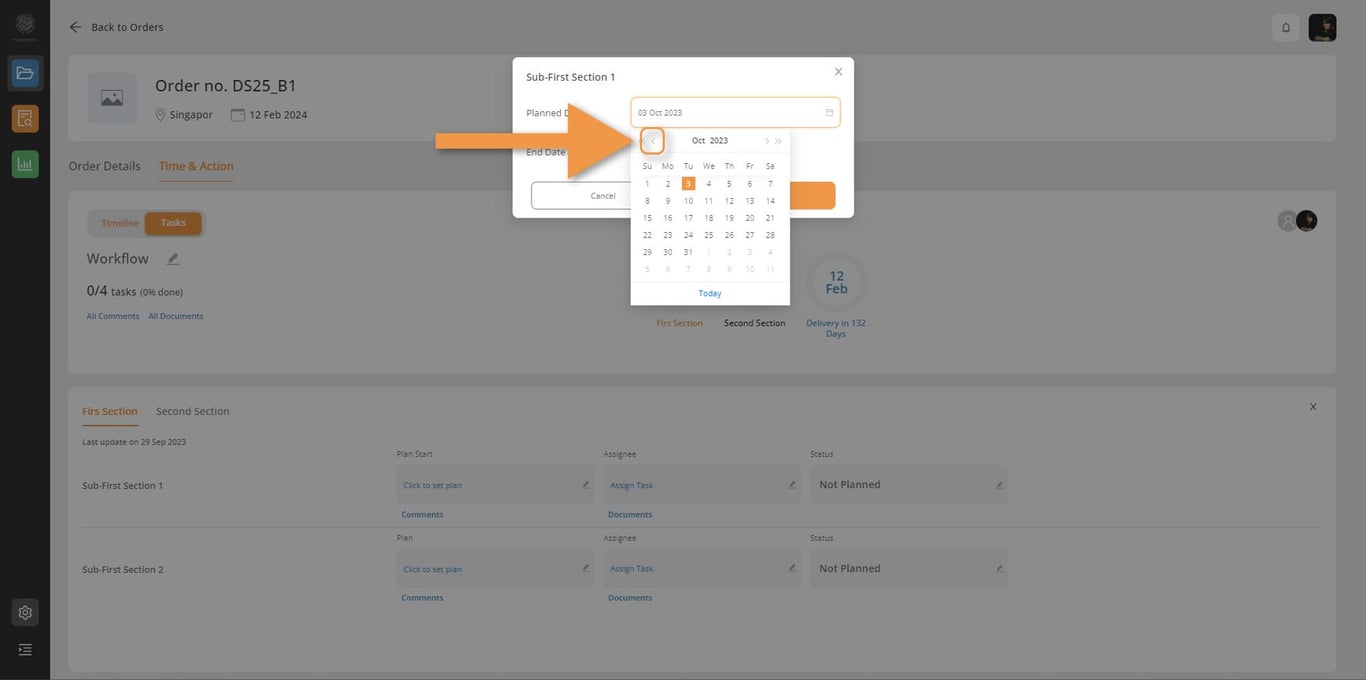
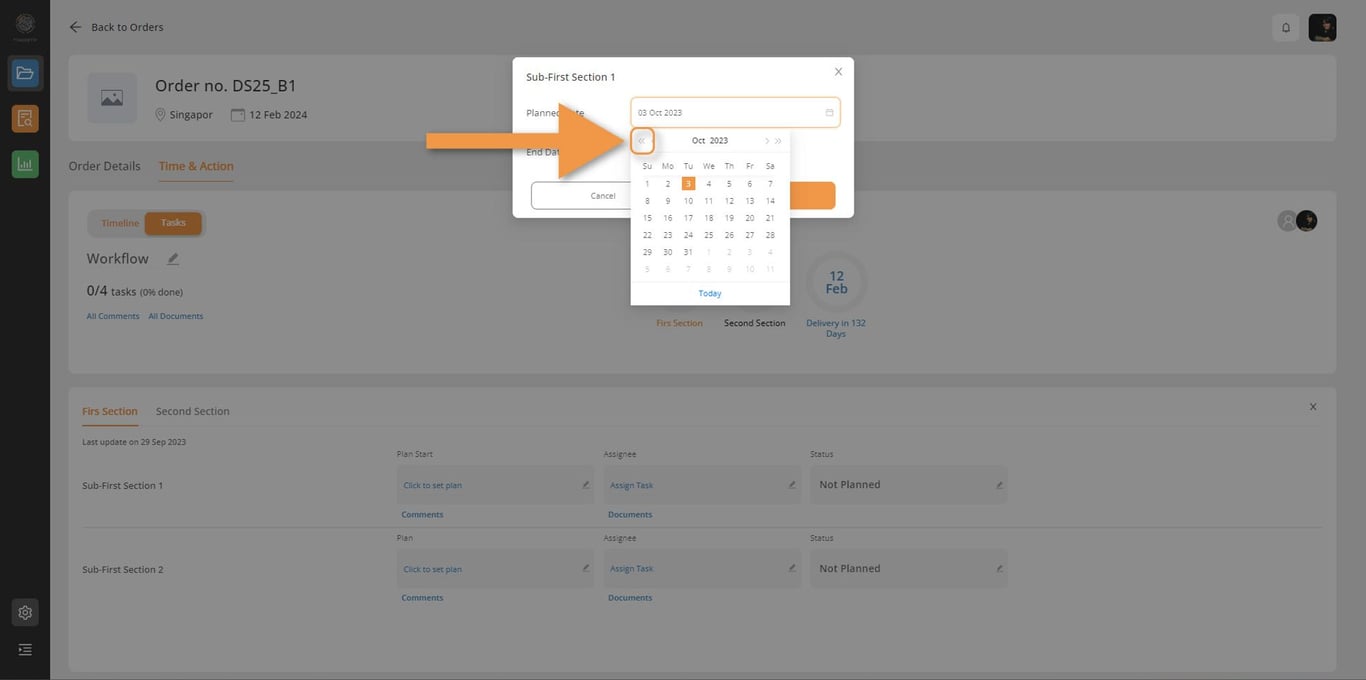
Click on this two arrows to move to one more year backward.
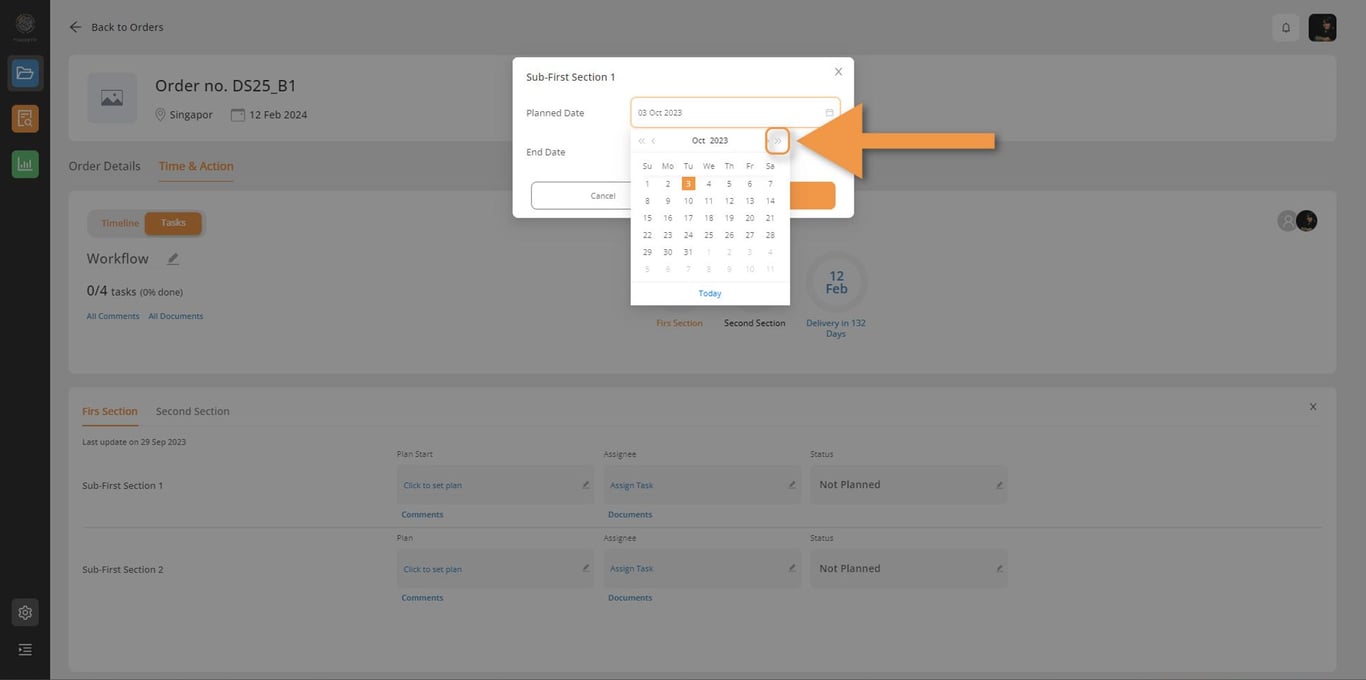
Click on this two arrows to move to one more year forward.
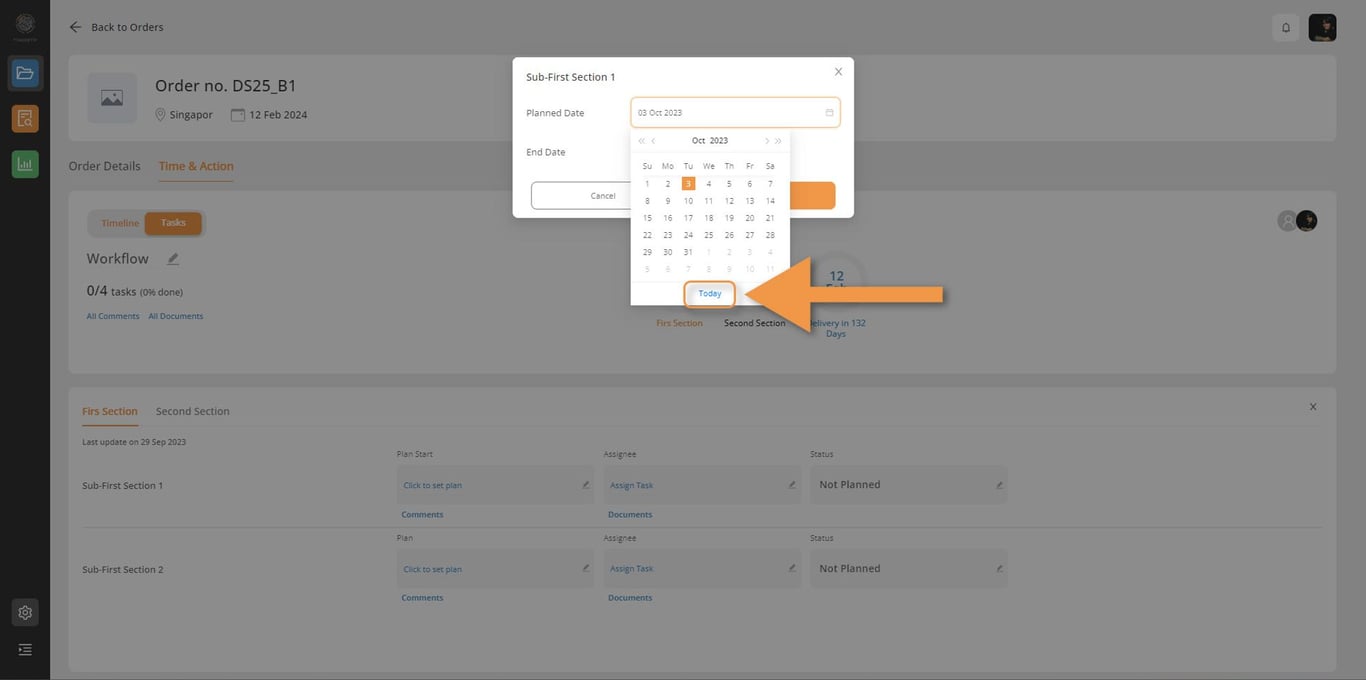
If you go too far from your date and want move back. Click on Today. It help to back to your currents date.
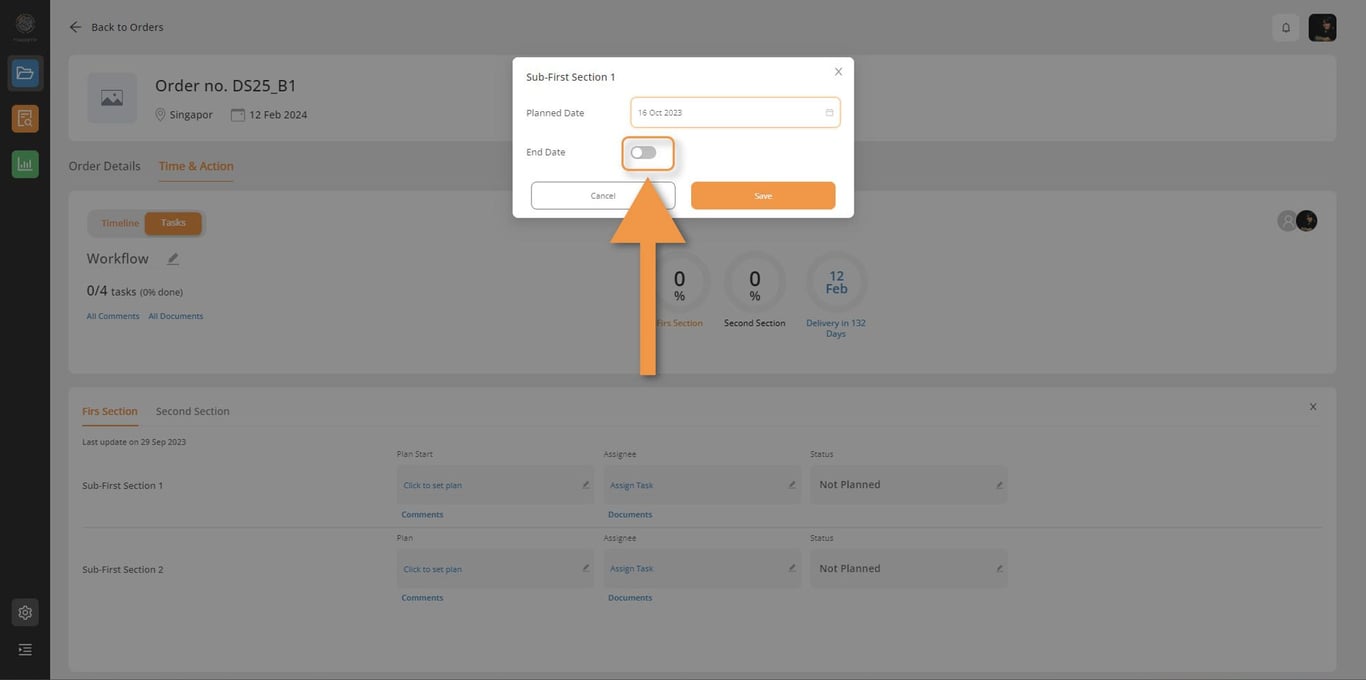
Click on End date when you want to add your end date schedule.
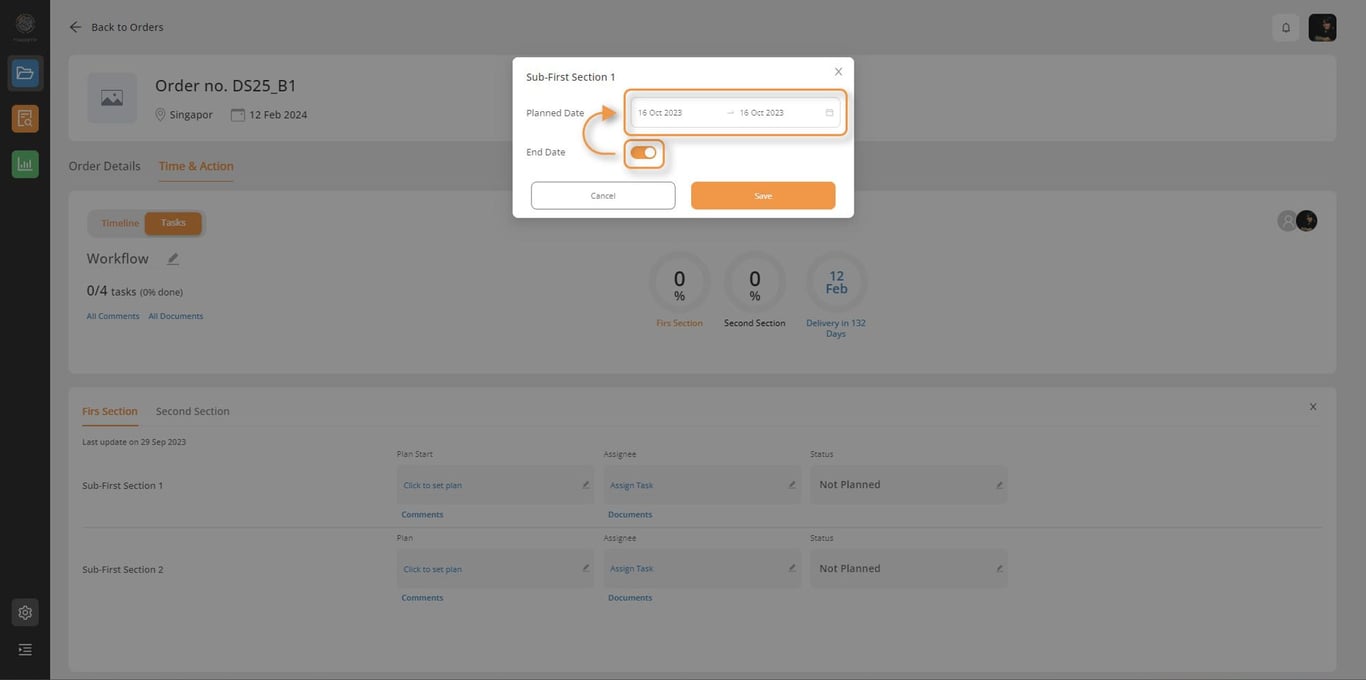
Chose your end date
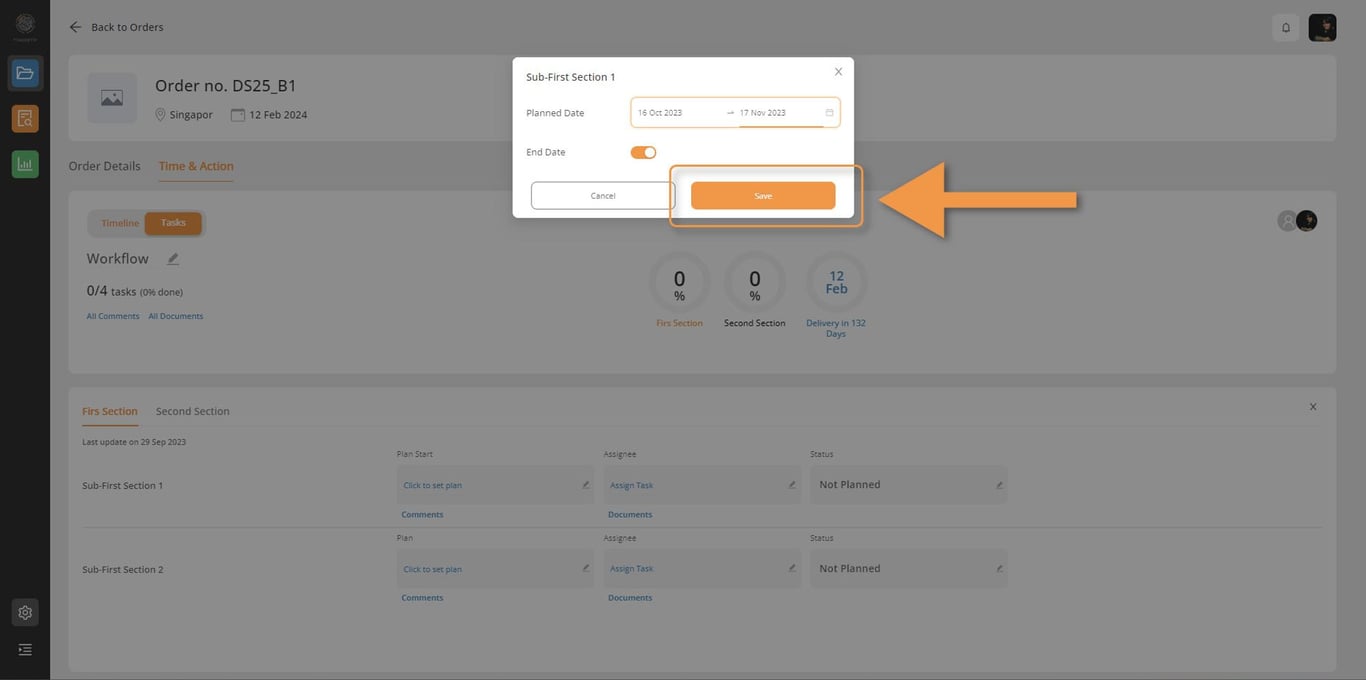
Click on Save bottom when you already chose your plan date.
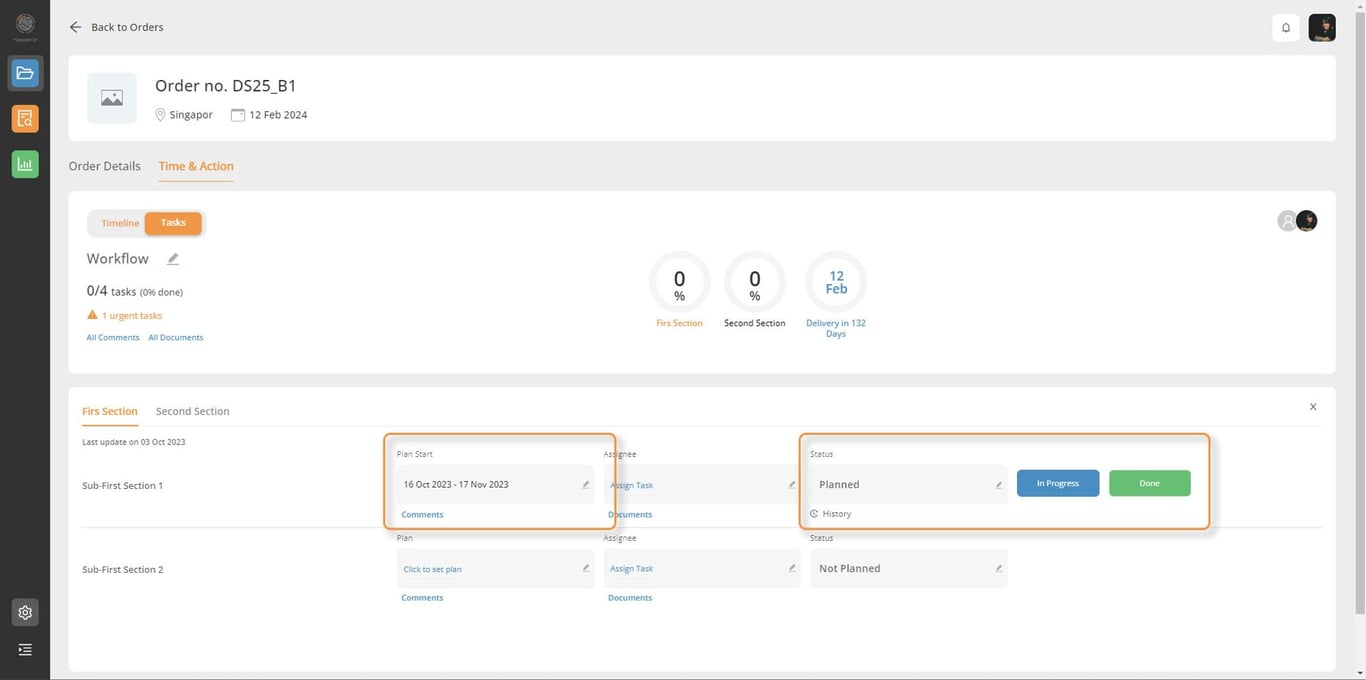
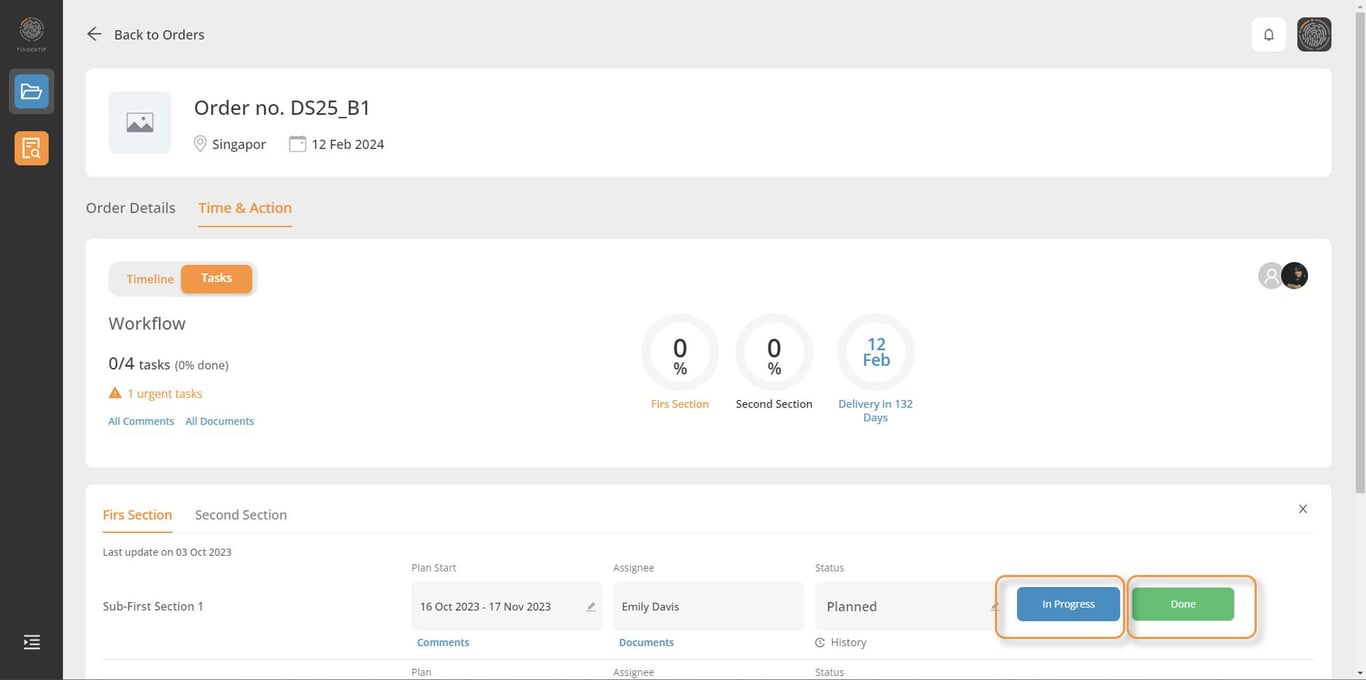
After save, you will some update like Plan Start with the date, Status changed to Planned, and there are In Progress and Done bottoms appear.
Assignee
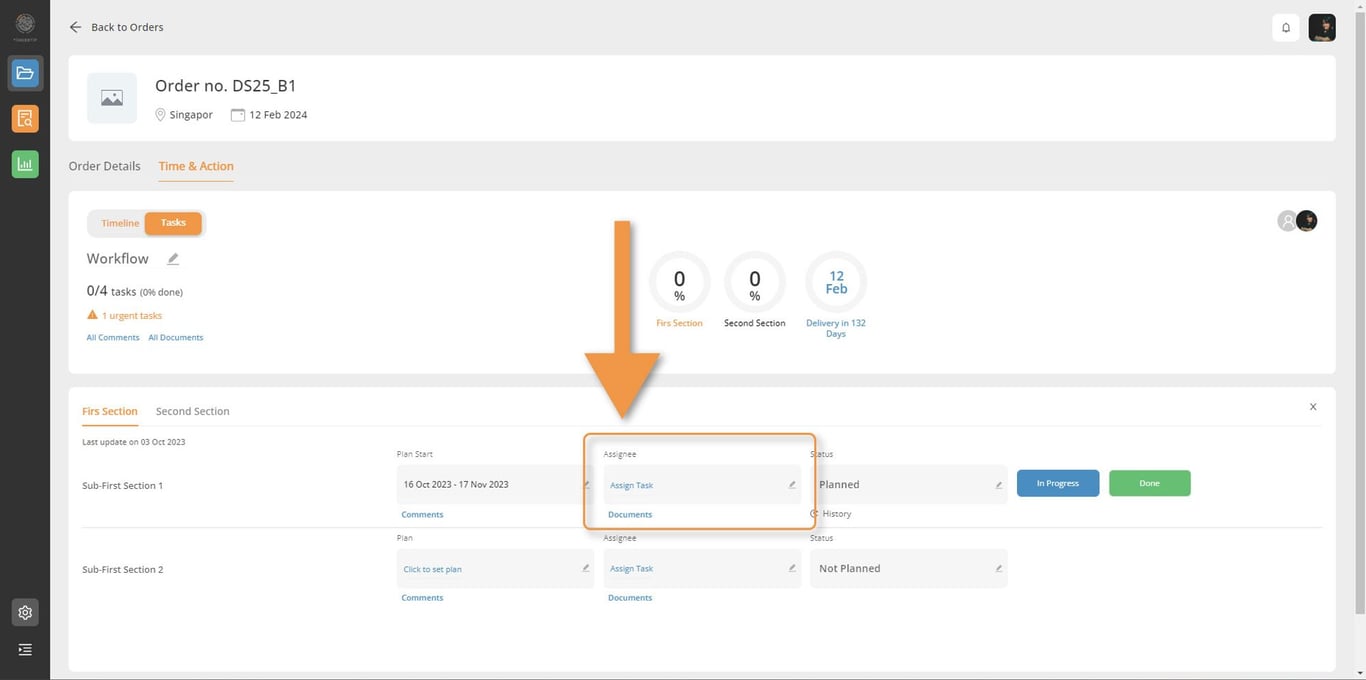
Assign or change your team to work on the task here
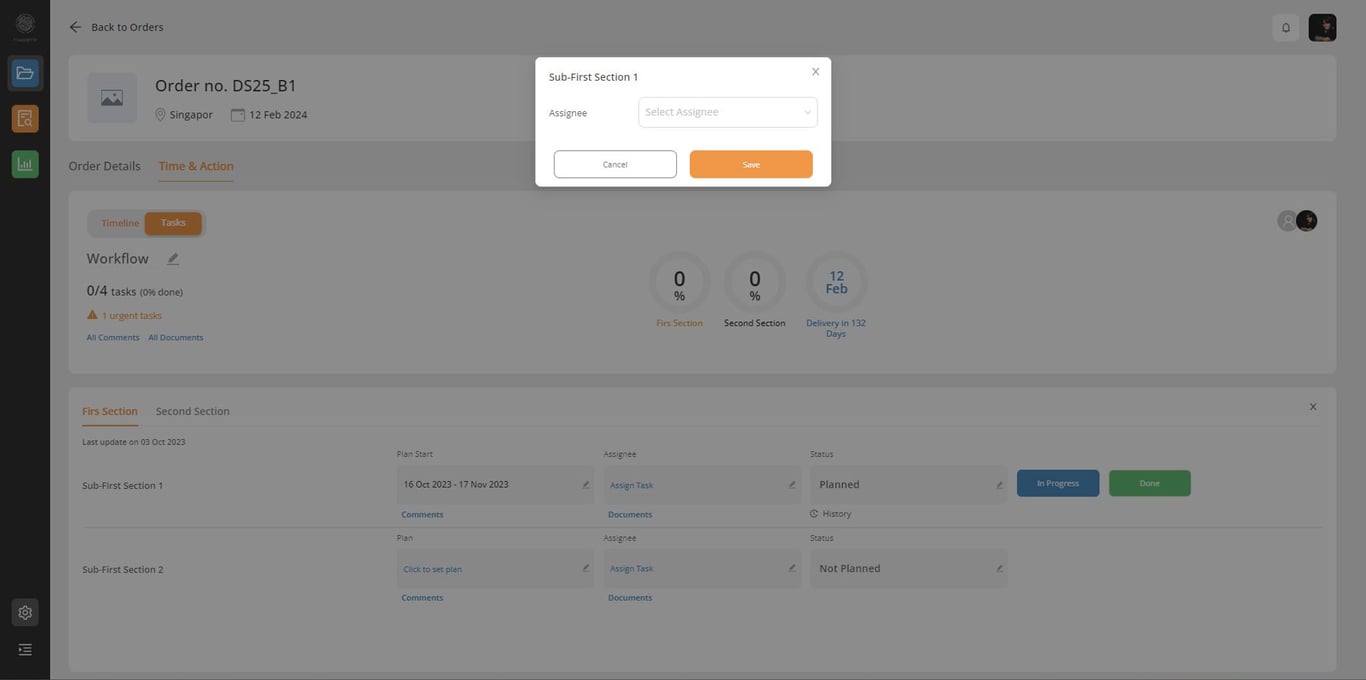
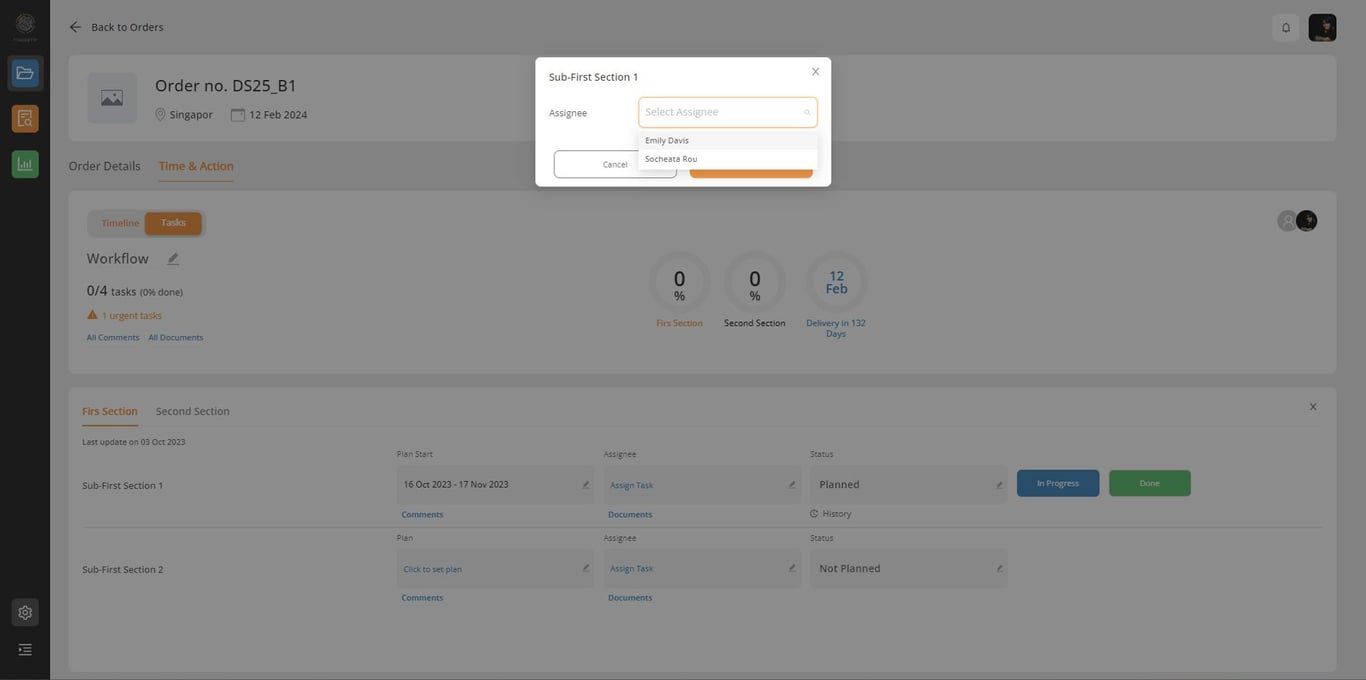
*The people you invite in Collaboration will appear here. As for example we invite only Emily, so we can only see Emily who we was assigned as the Doer and Socheata is the Owner.
As the Owner, you can assign your team or yourself to work on any task.
And Click on Save.
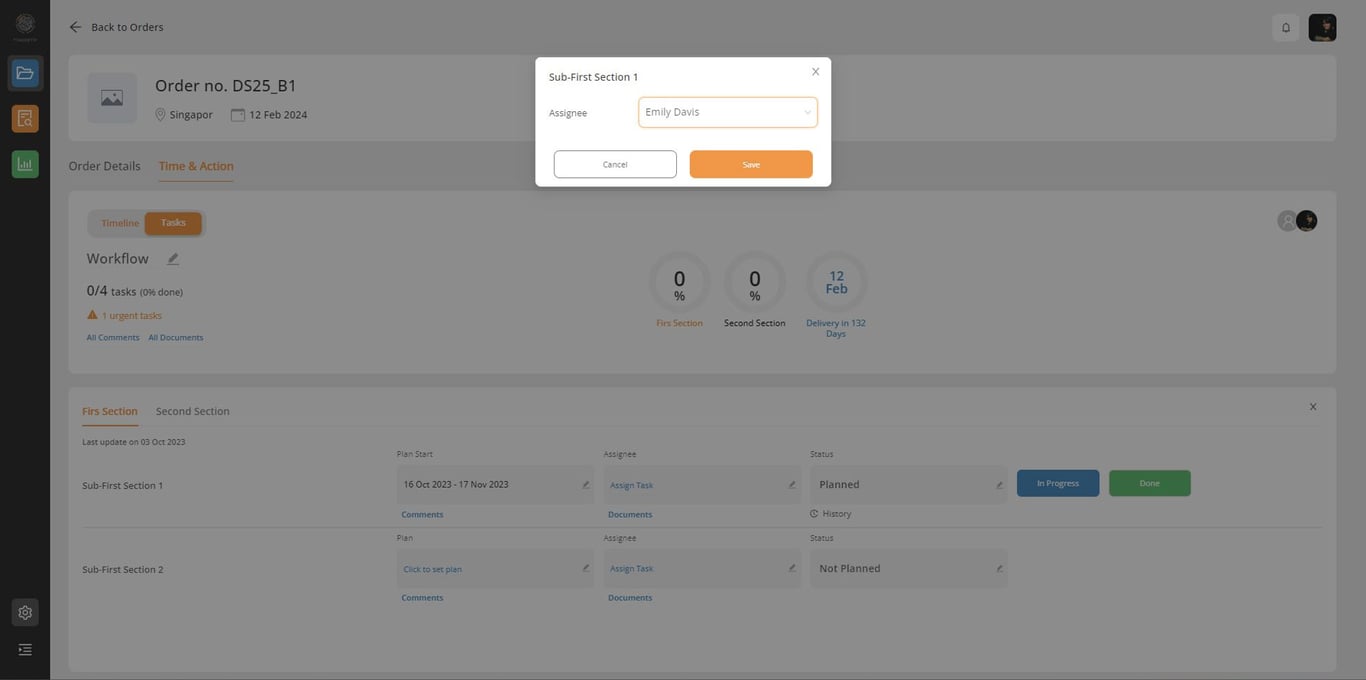
After Save, you will see Emily assigned for your sub section
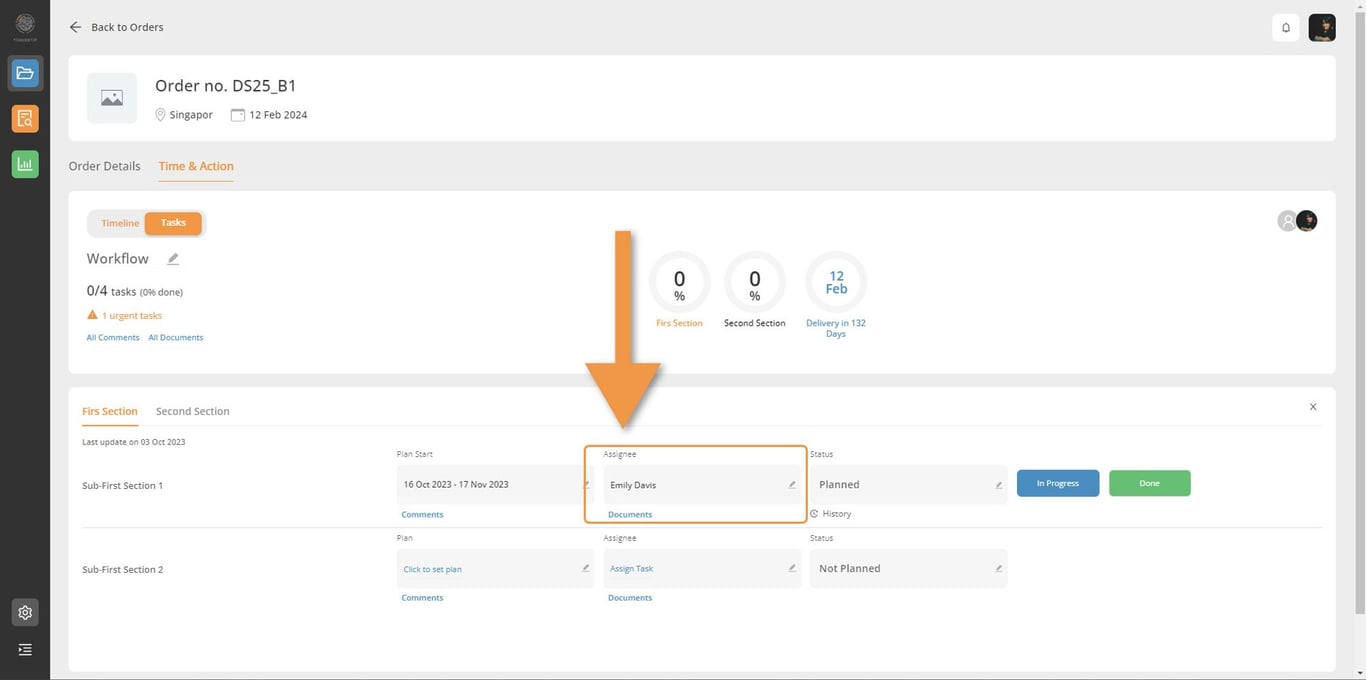
After you assigned them, your team will immediately received the notification.
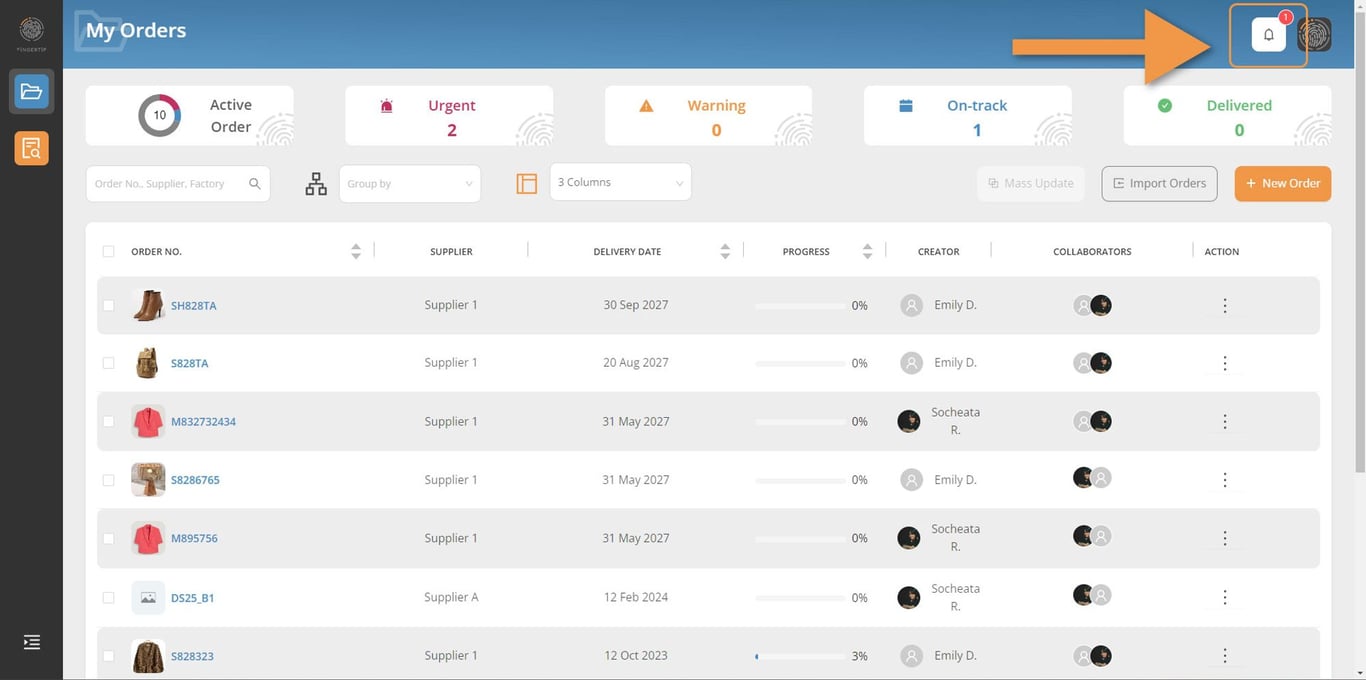
Click on the bell to see what is new. The last notification will always appear on the top. You can also see it with the the date.
The uncheck notification will appear with Blue dot at the top left of the message.
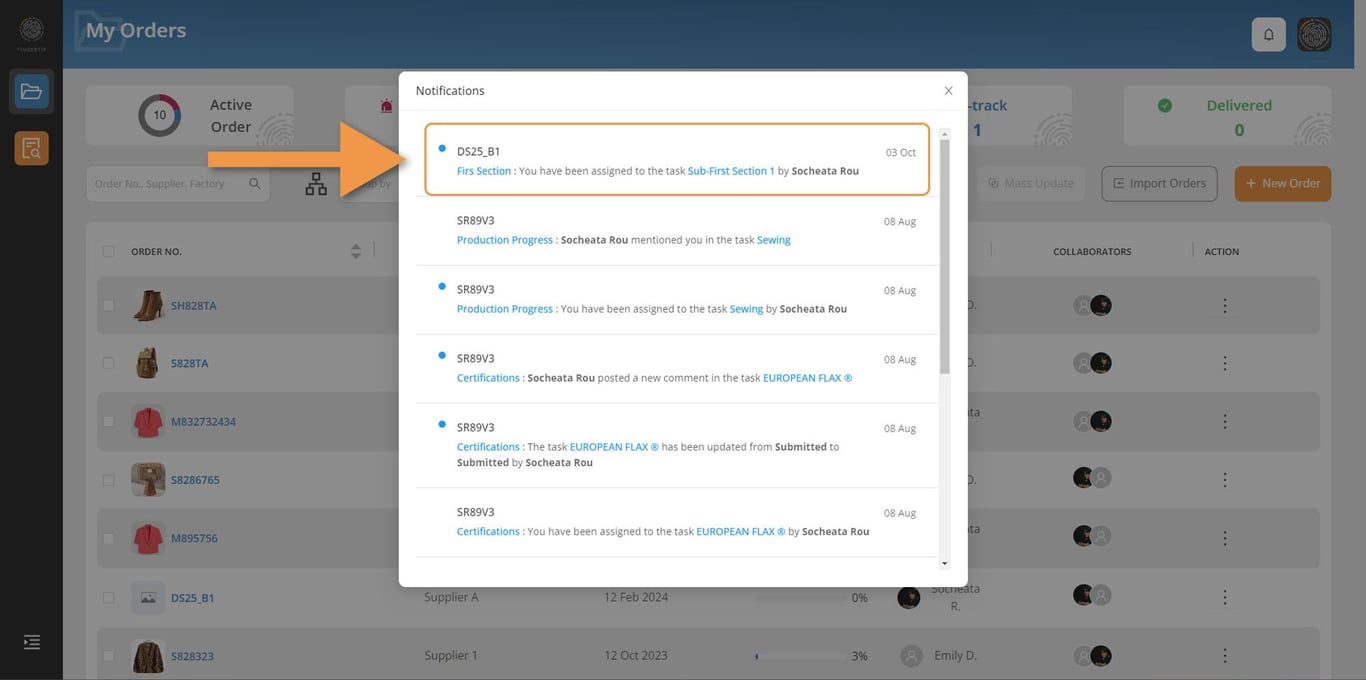
And click on that notification to check your task.
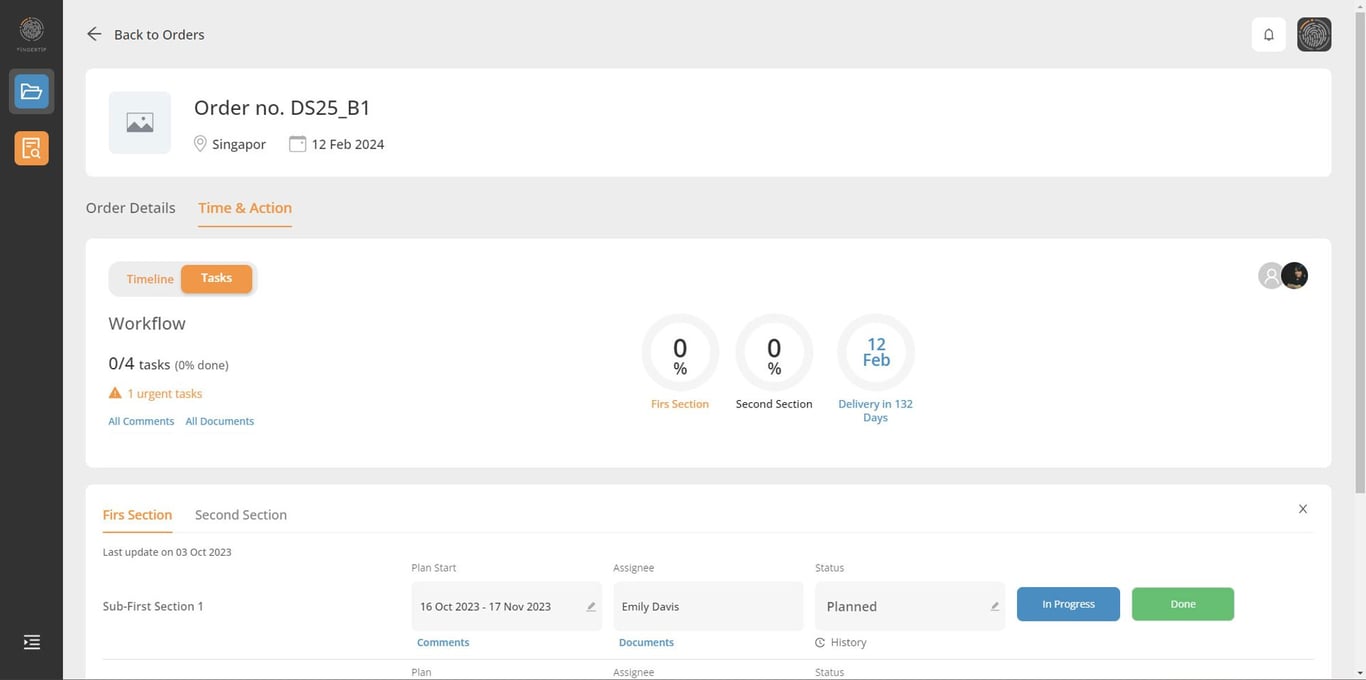
After your admin assigned Doer for a task, doer work is to update the Status.
Status-for Doer role
When you want to update the progress for this sub section, you can click Planned
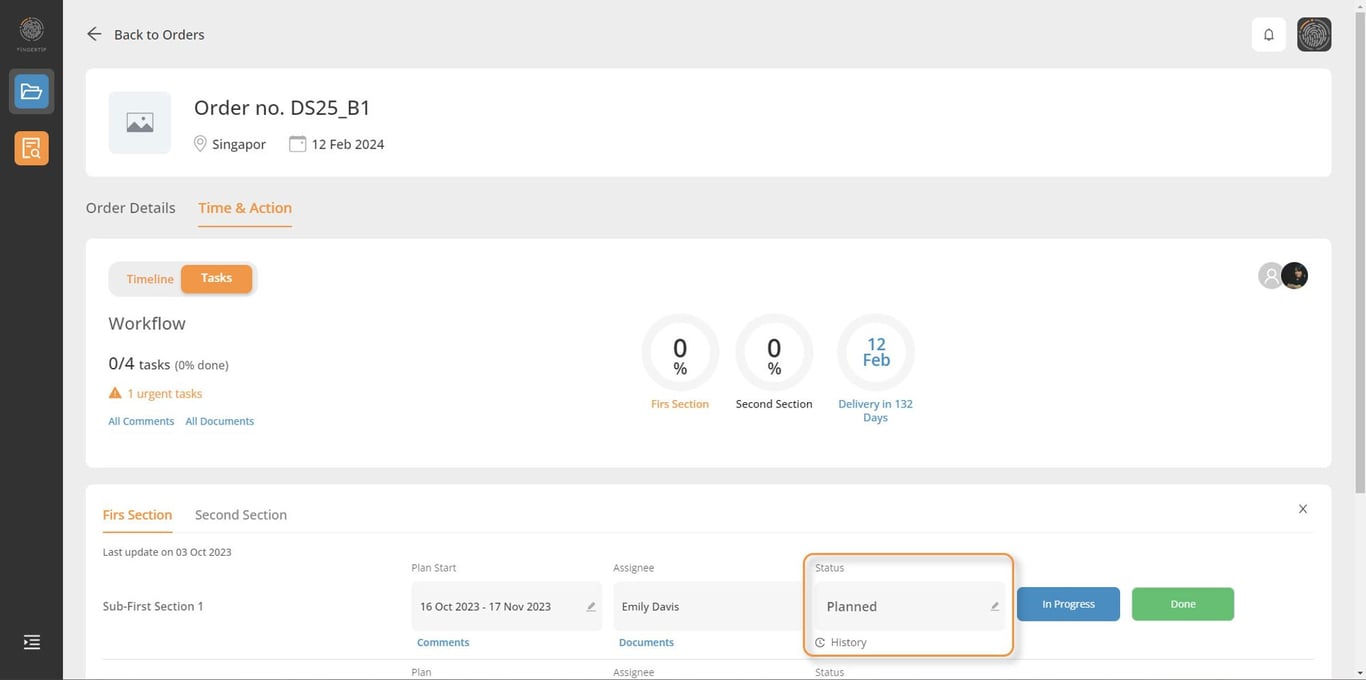
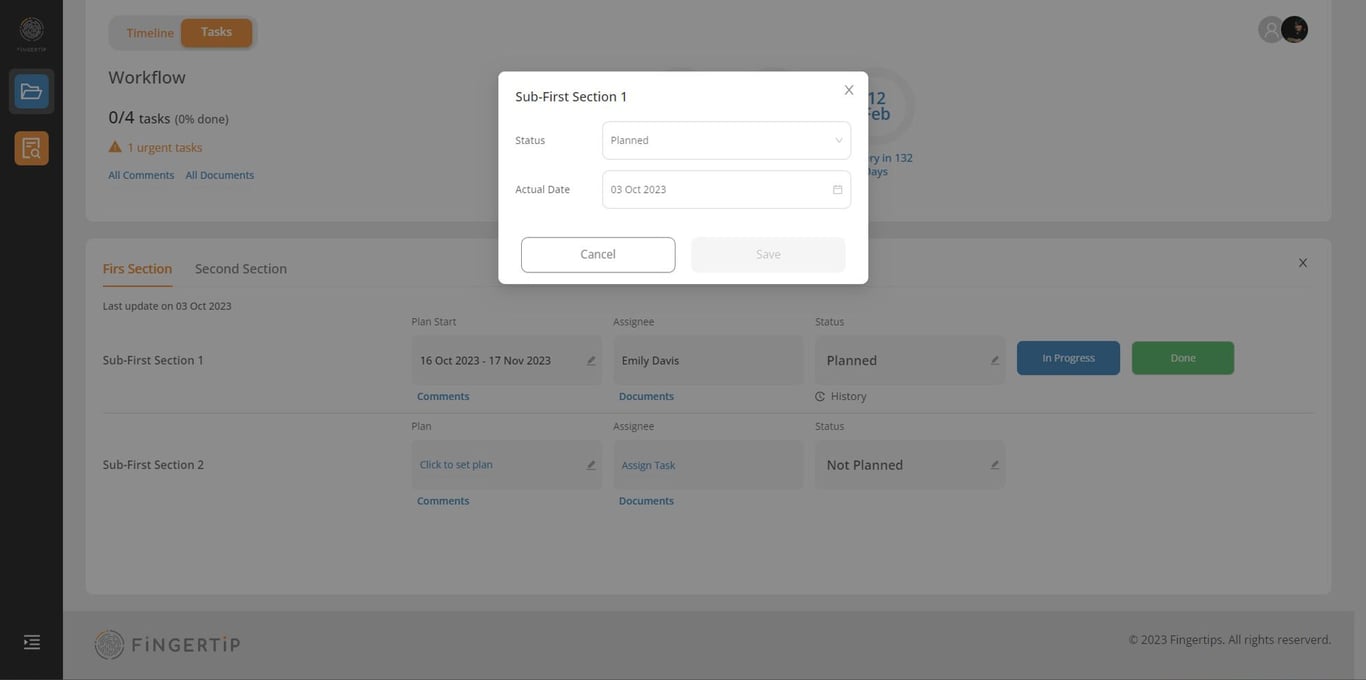
change your statue
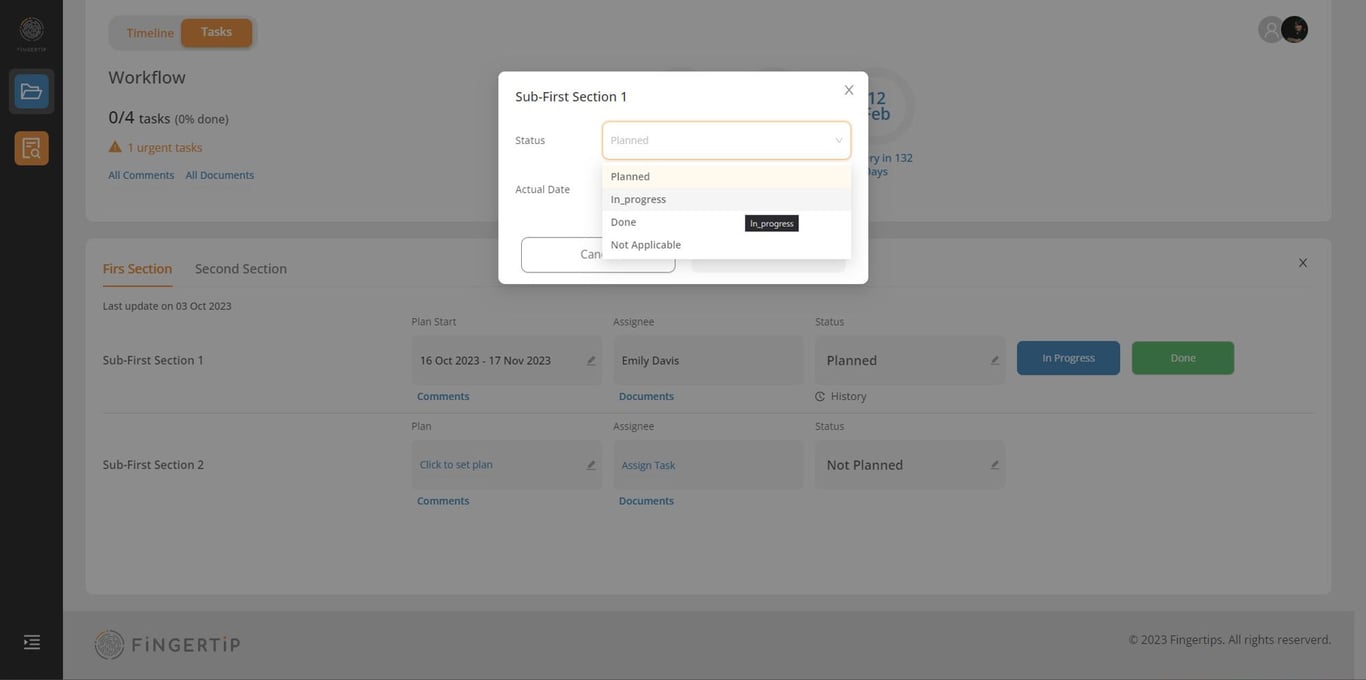
Chose the actual date when you update this status.
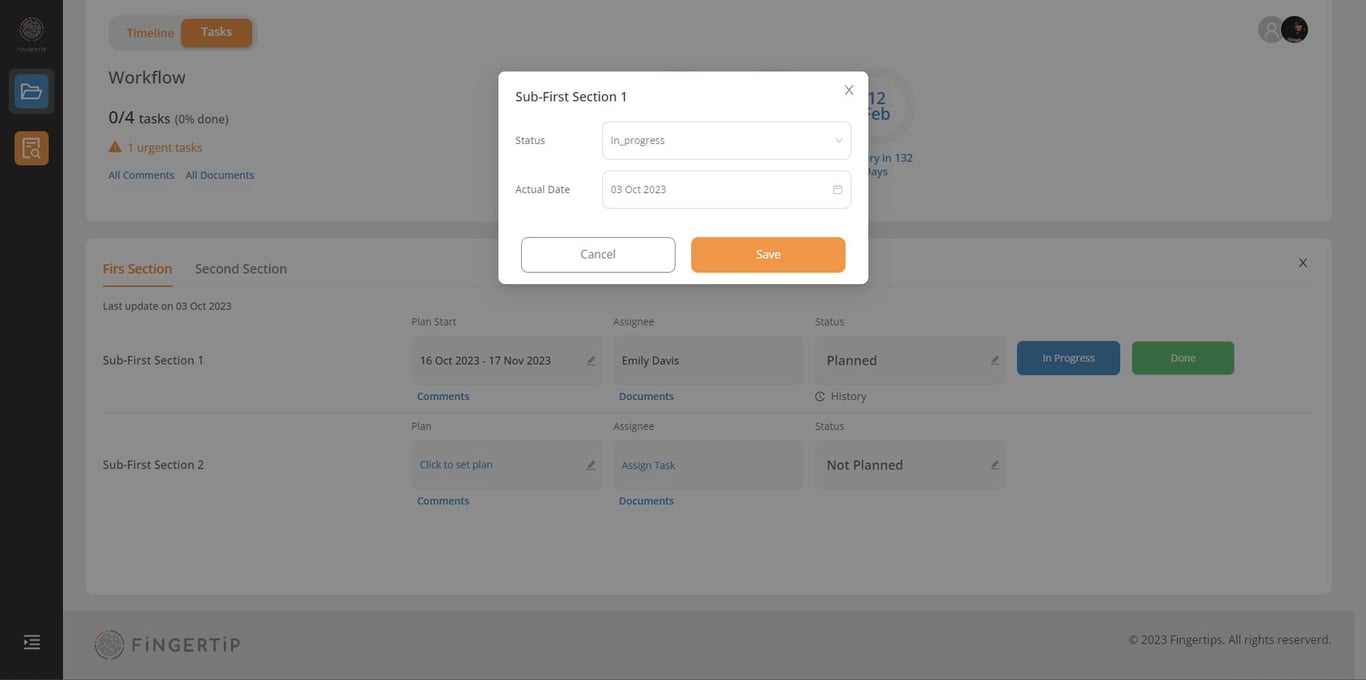
Click on save. And you will see this update
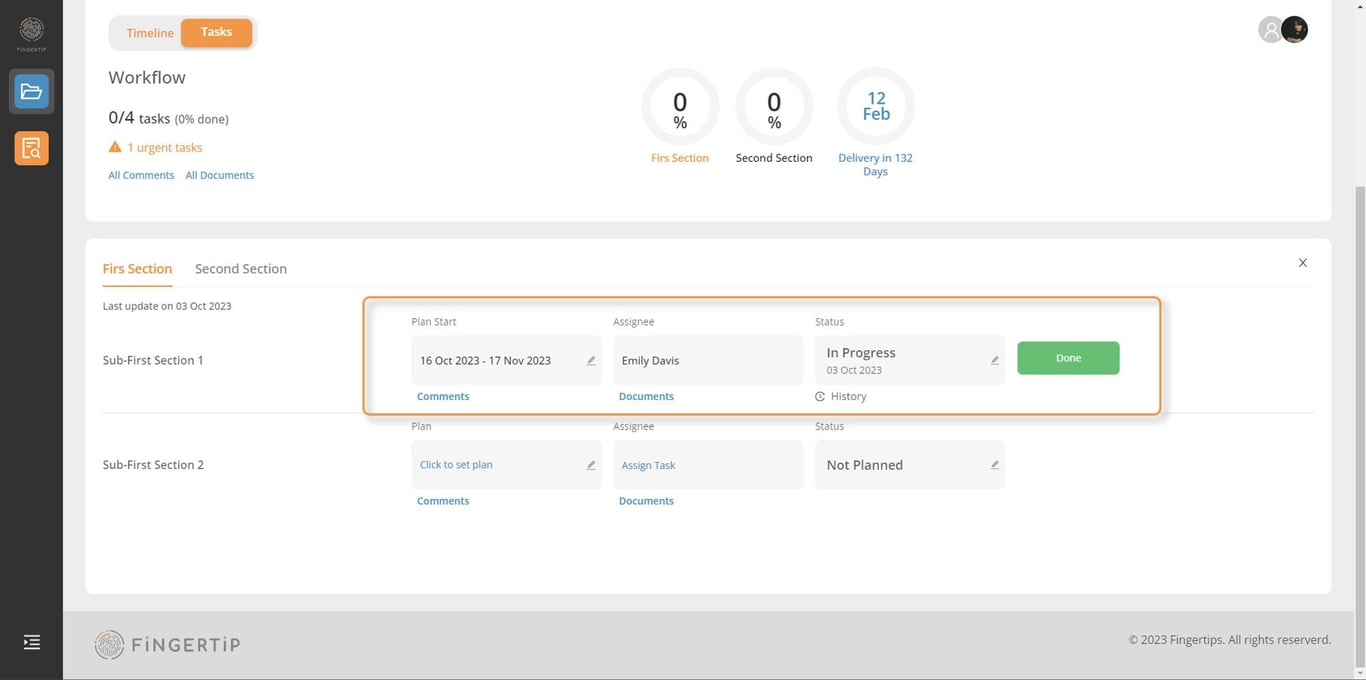
Or you can click on In Progress if it is in progress or Done bottom if this sub section is done.
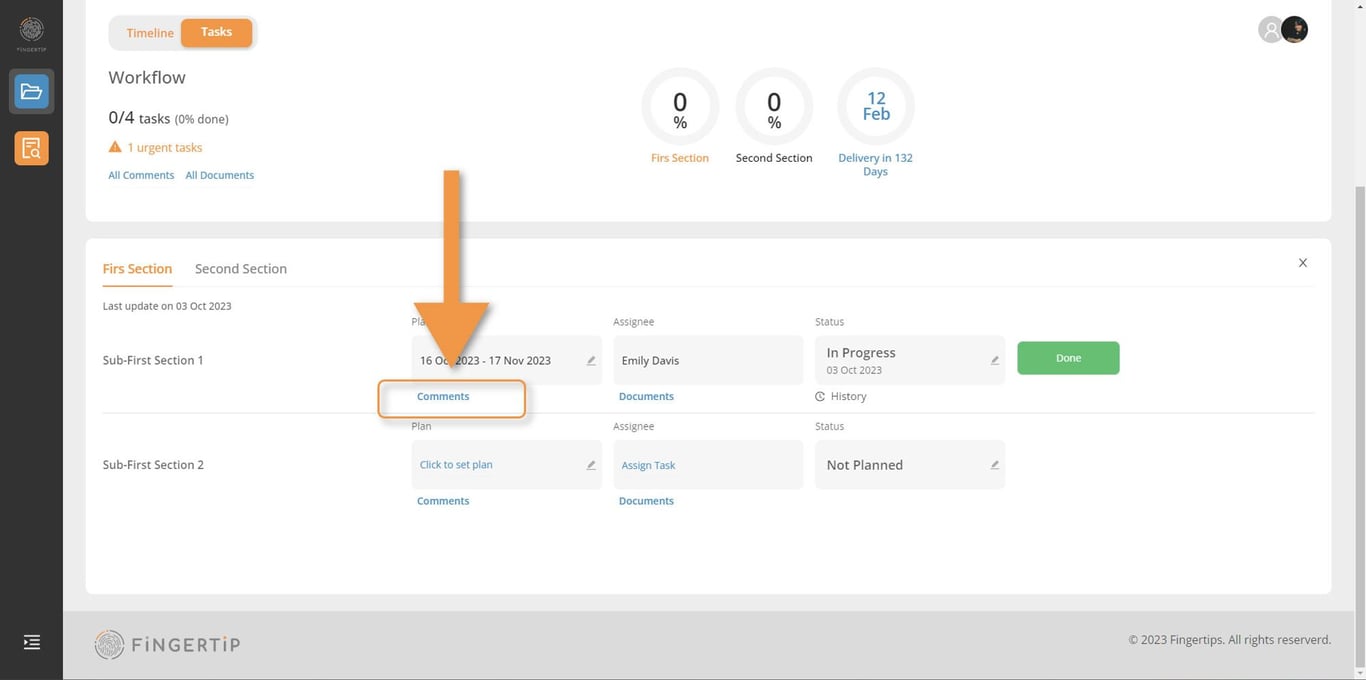
Click on Comments if you want to comments, check, and mention your team for this sub section.
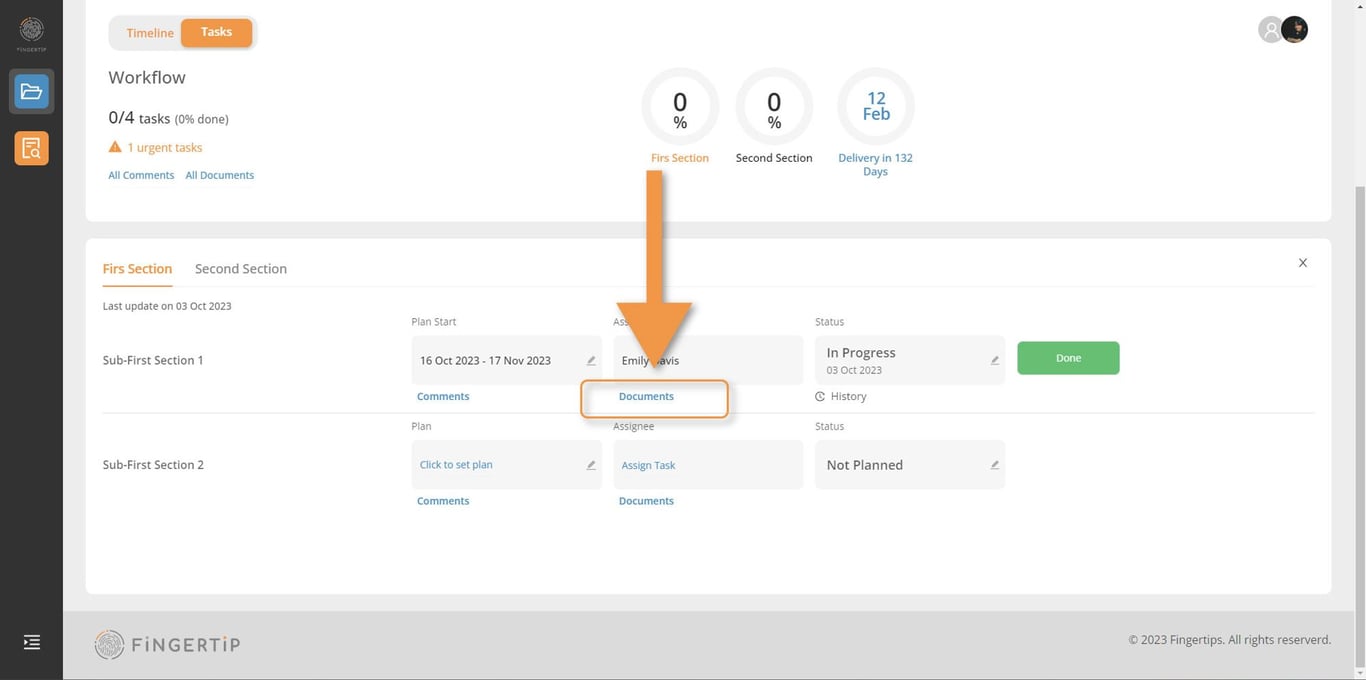
Click on Documents if you want to share some document with your team.
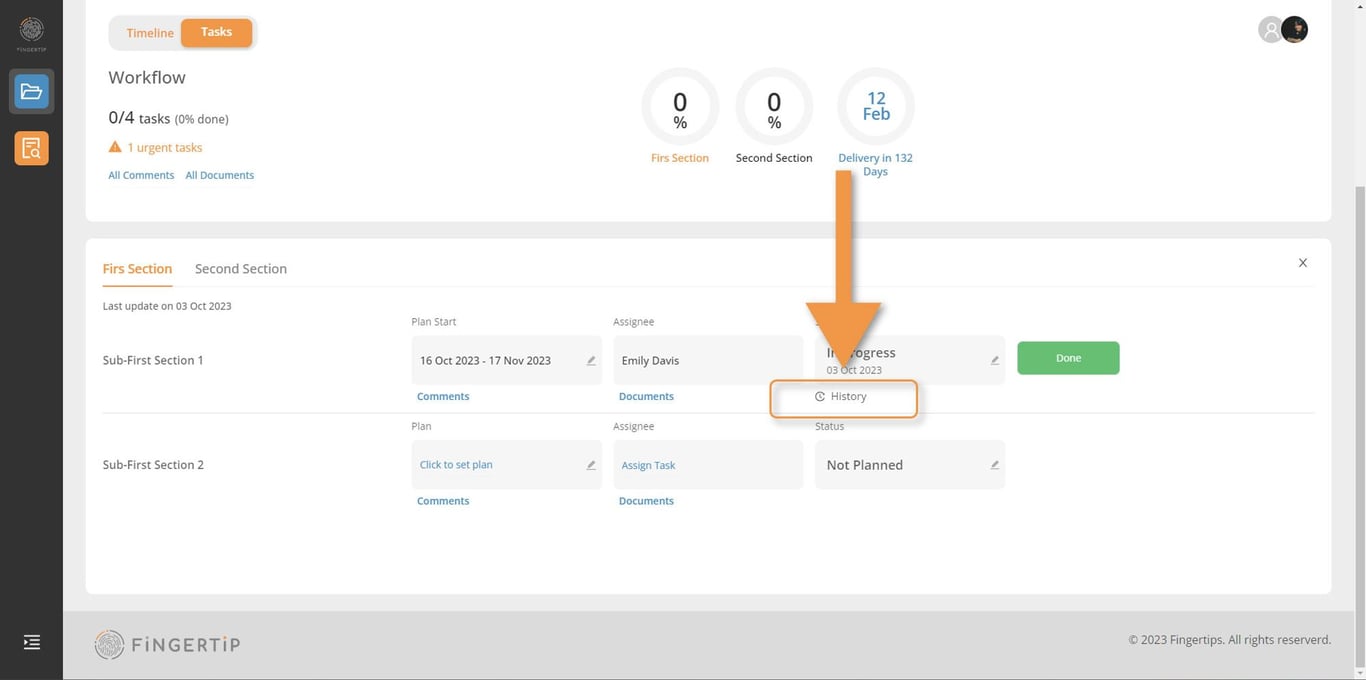
Click on History to check what updated for this sub section.
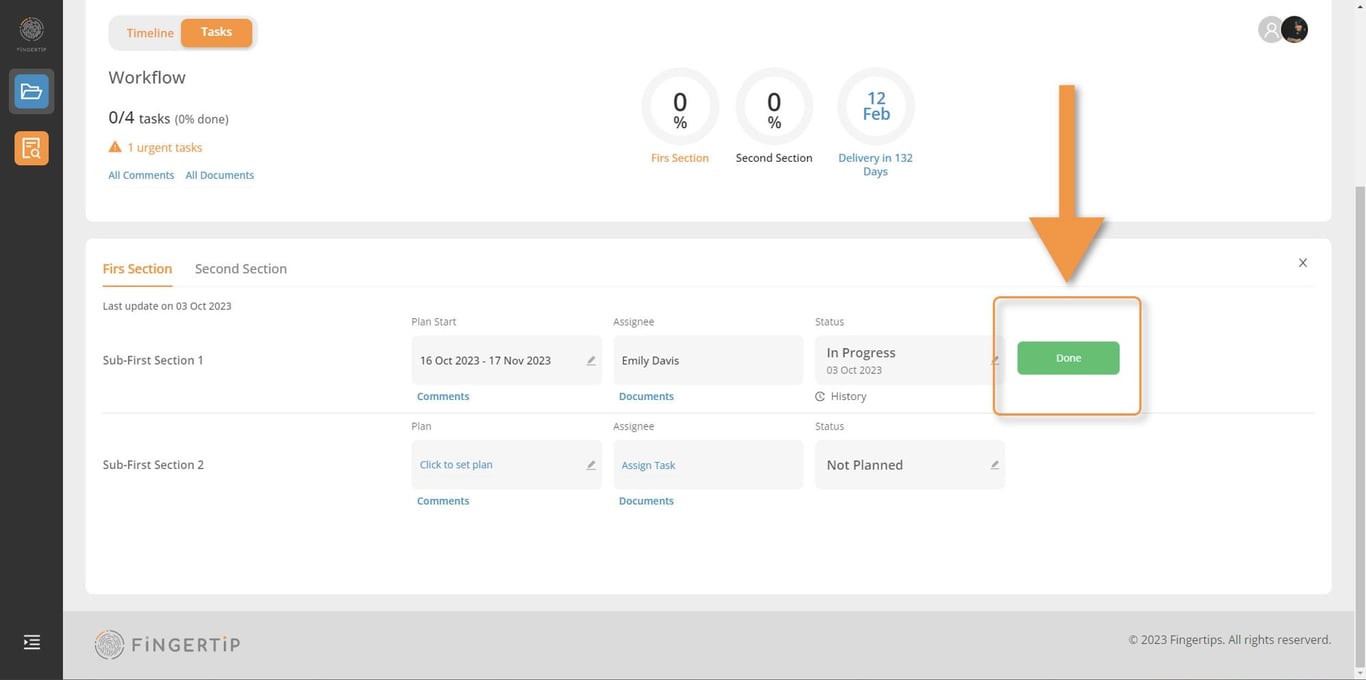
Finally, you can click on Done bottom if the sub section finished.
 Made with Bullet