List view
New Releases
New Releases
Getting Started
Getting Started


Order Management
Order Management


Inspection Management
Inspection Management
Templates
Templates
Navigate in My Tasks
Welcome to the new task management feature: My Tasks. This guide will help you navigate the new task listing page, which provides a comprehensive view of all tasks from your order’s Time & Action, and offers a simple way of updating your tasks in a few clicks.
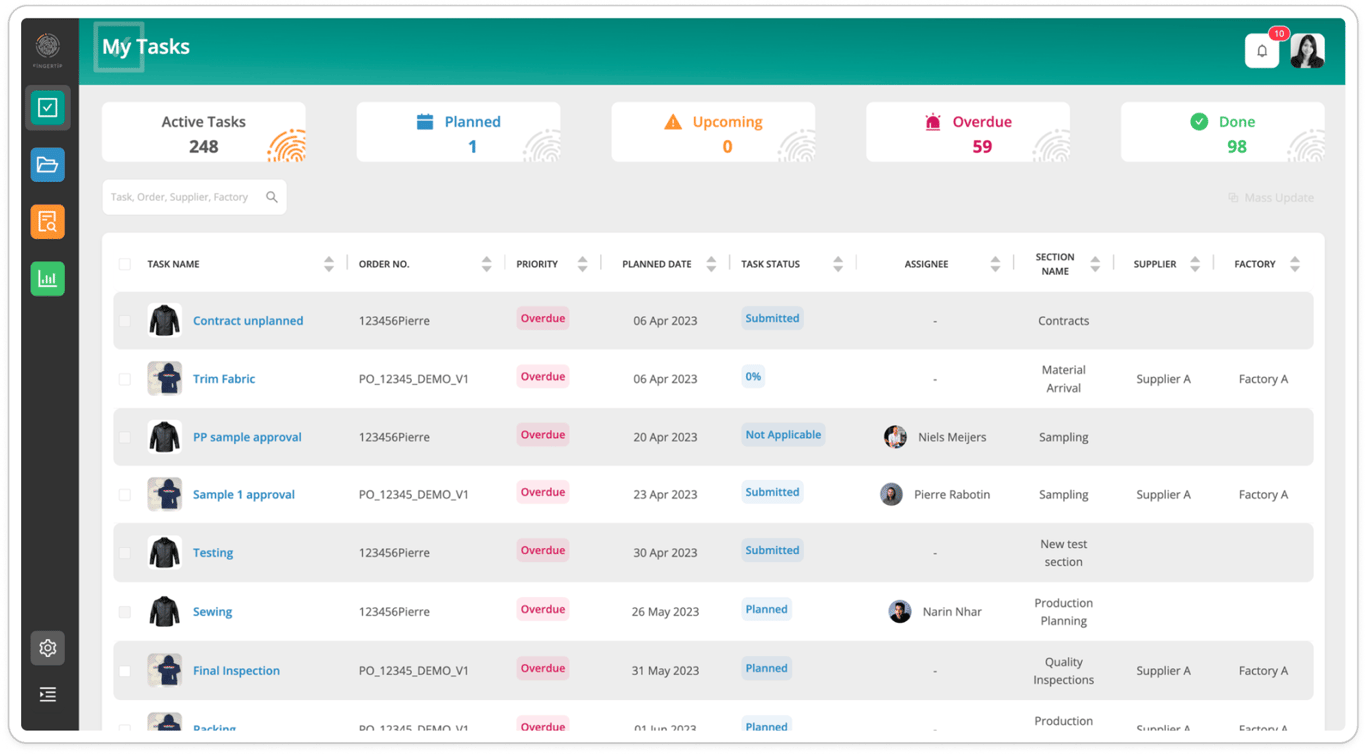
Task Listing
In the side navigation bar, click on My Tasks button to access the task list.

Please contact the Fingertip Support if you do not see it.
Tiles
At the top of the task listing page, you will find tiles representing different task priorities:
- Active Tasks: All tasks that are not done yet.
- Planned: Tasks that are scheduled with a due date.
- Upcoming: Tasks that are due within 2 weeks and need attention soon.
- Overdue: Tasks that have passed their planned dates and need immediate action.
- Done: Tasks that have been completed.

By default, you will see the list of all active tasks shared with you. You can click on any of these tiles to filter the task list by the selected status.
Search / Sort

Located above the task list, the search bar allows you to quickly find tasks by entering keywords related to the Task name, Order number, Supplier or Factory name.
You can sort each column of the table by ascending or descending order.
Task Panel

Click on any task name in the list to open a side panel.
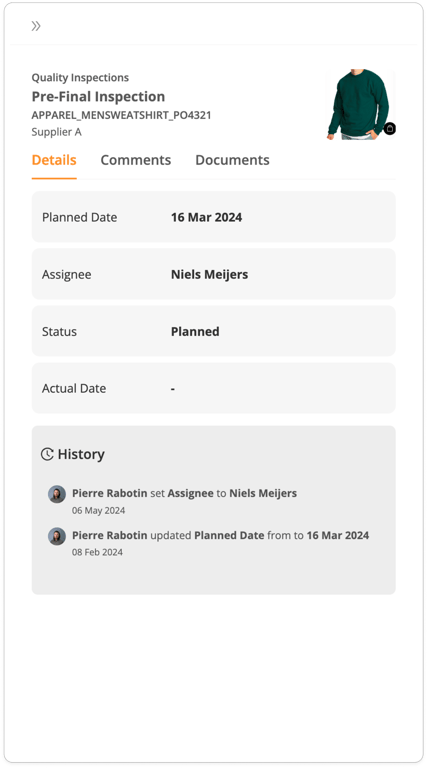
On the top, you will see the Section name, the Task name, the Order number and the Supplier name.
Details
In the Details tab of the task, you will see the:
- Planned Date: The scheduled date for the task.
- Assignee: The user responsible for the task.
- Status: Current status of the task (Not Planned, Planned, or related to the Task control type).
- Actual Date: The date when the task changed status.
- History: A log of all updates made to the task, including changes to dates, assignees, and statuses.
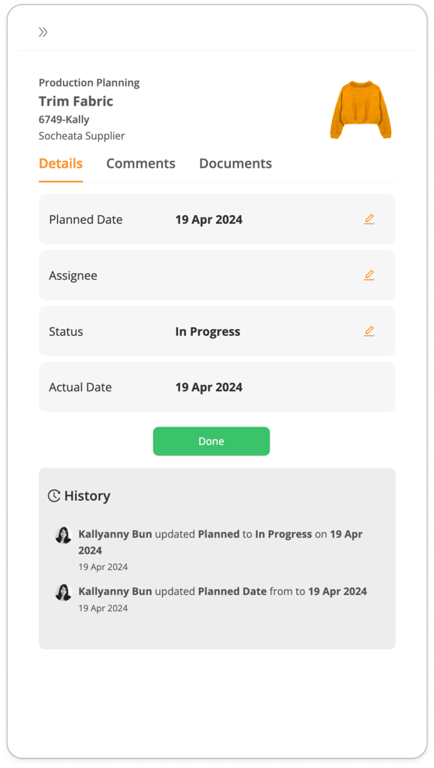
If you have the permission to edit the task, you will see:
- Edit icons to update the information
- Action buttons to update the status
Comments
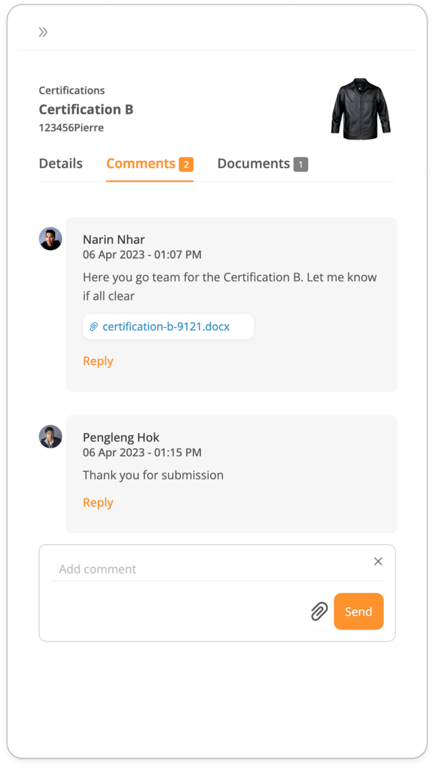
In the Comments tab, you will see all the comments made for that task. In the comment box:
- Use @ to mention collaborating users
- Click on the paper clip icon to attach a document
- Click on Send and your comment will be instantly posted
Documents
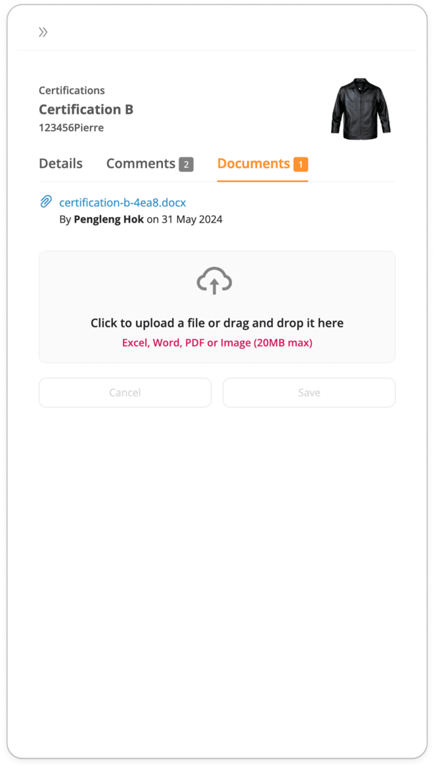
In the Documents tab, you will see all the documents uploaded for that task:
- Click on any uploaded documents to open it
- Drag and drop or click on the area to upload your files
Task Mass Update
This feature gives the possibility to update the status, to add a comment or to upload files for multiple tasks at the same time.
Task Selection
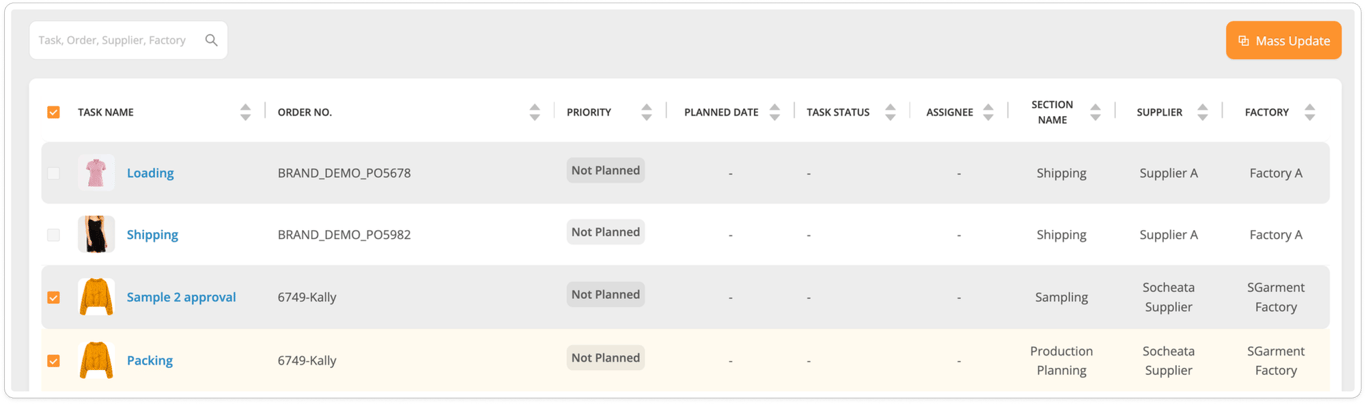
Use the checkboxes next to each task in the list to select multiple tasks for a mass update. Only the tasks you have permission to edit will be selectable.
After selecting at list 2 tasks, the Mass Update button on the top right of the table will become clickable.
Update
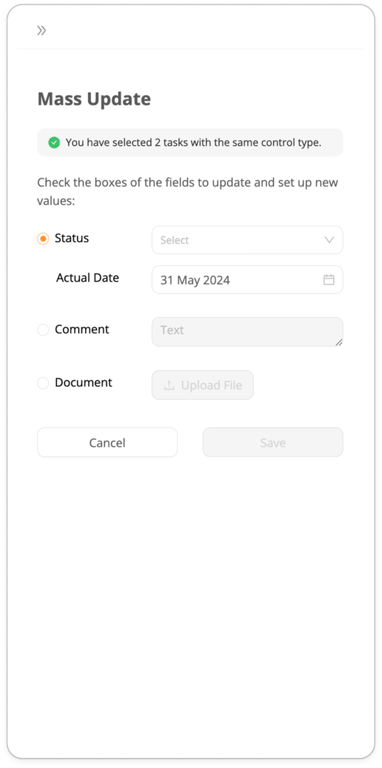
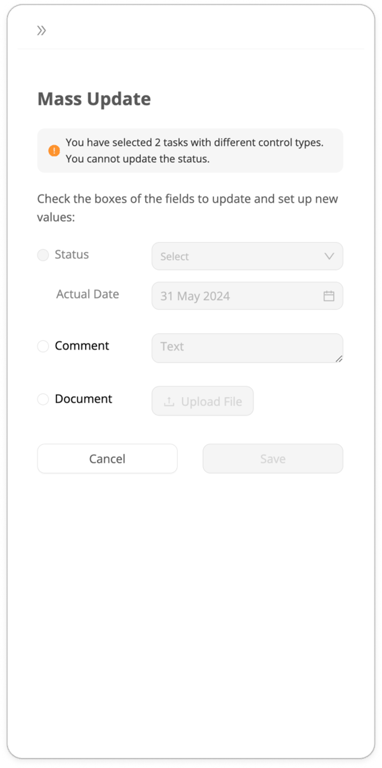
Click on the radio box of the information you want to mass update (status, comment or document).
If the tasks have the same control type, you can change the status of all selected tasks at once, and set the actual date.
If the tasks have different same control types, you cannot change the status, the radio box will be disable.
 Made with Bullet