List view
New Releases
New Releases
Getting Started
Getting Started


Order Management
Order Management


Inspection Management
Inspection Management
Templates
Templates
2024
September 2024
We’re excited to introduce the Mandatory Checkpoints feature for inspections. This update ensures that crucial information is captured during inspections, improving accuracy and compliance.
- Admins can now mark checkpoints as mandatory in the Inspection Template settings.
- Inspectors will see mandatory checkpoints clearly identified with a red asterisk (*) in the inspection form.
- Alerts will notify inspectors if any mandatory checkpoints are incomplete, preventing submission until all required information is filled.
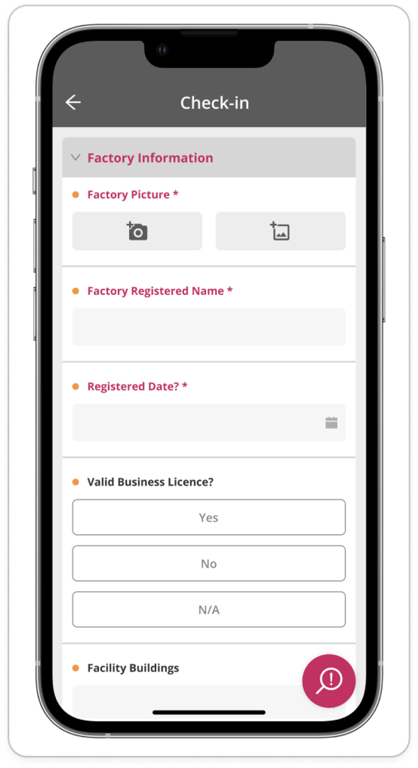
- Exceptions: Mandatory checkpoints will be ignored if sections or the entire inspection are marked as N/A (Not Applicable).
This feature is designed to streamline your inspection process and ensure that all essential data is captured. For more details, please refer to the User Guide.
July 2024
Introducing the new Search Inspections feature in the mobile app. This update enhances inspection management by allowing you to quickly filter and find inspections linked to specific order numbers.
- Access the Search Inspections action through the Floating Action Button on the Inspections page.
- Use the modal to search and select one or more order numbers from your active inspections.
- Filtered inspection listings show selected order numbers at the top as removable chips, with options to modify or clear the search.
This feature makes it easier for inspectors to locate and manage inspections related to specific orders, streamlining your workflow on the go. For more details, please refer to the User Guide.
May 2024
We are excited to announce the release of our new Task Management feature: My Tasks. This feature provides a comprehensive view of all tasks from your order’s Time & Action plan and offers a simple way to update your tasks efficiently.
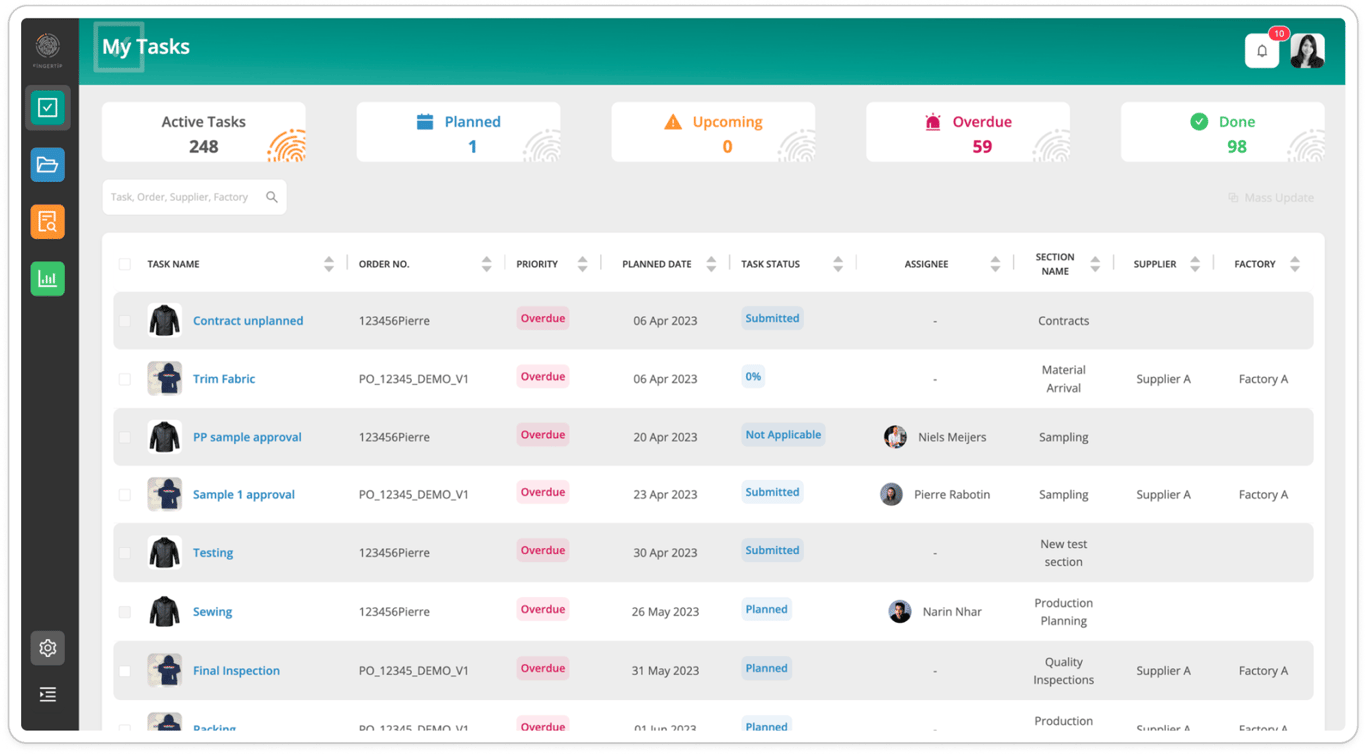
- Task Listing
- Use priority tiles to filter tasks by status: Active Tasks, Planned, Upcoming, Overdue, and Done.
- Quickly find tasks with the search bar and sort each column in the task list.
- Task Panel
- View and edit task details, comments, and documents in a side panel by clicking on any task name.
- Task Mass Update
- Select multiple tasks using checkboxes for mass updates.
- Update status, add comments, or upload documents for selected tasks simultaneously.
For a detailed guide on how to navigate and use the new My Tasks feature, please refer to the User Guide.
This release aims to enhance your task management experience, making it more efficient and user-friendly. For any assistance or feedback, please contact Fingertip Support.
 Made with Bullet